
Define the workgroup required to manage the survey according to specific permissions. #
The “Groups and Users” screen allows you to set up the team members responsible for managing and carrying out the surveys. To add a workgroup, follow these steps:
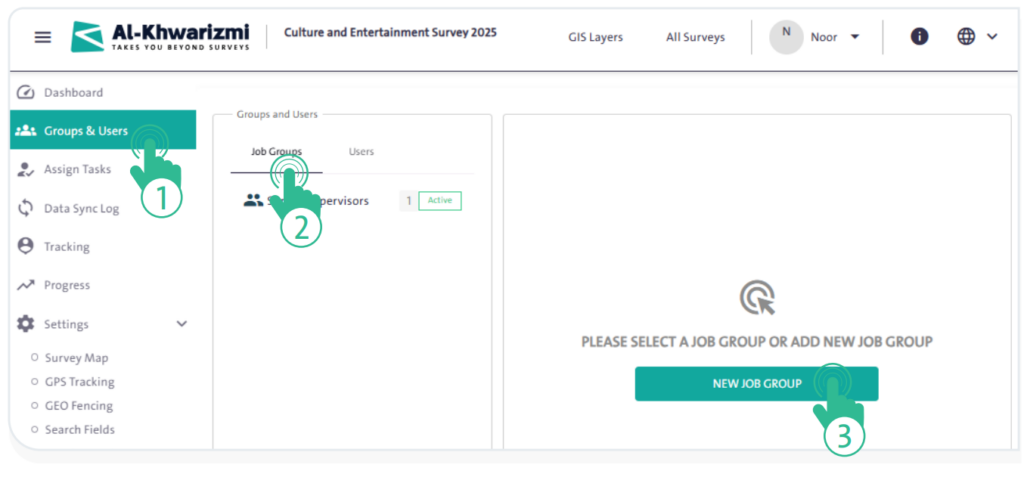
- Select “Groups and Users” from the side control menu.
- Click the “Job Groups” tab.
- Click the “New JOB Group” button to display a screen with the available options, then fill in the following group details:
- “Job Group Color”
- “Group Name in English”
- “Group Name in Arabic”
- “Group Description in English”
- “Group Description in Arabic”
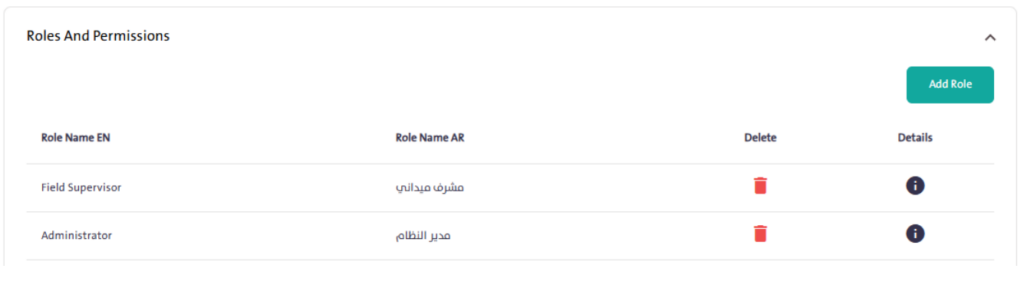
- Add the roles associated with the group by clicking the “Add Role” button and configuring the following options:
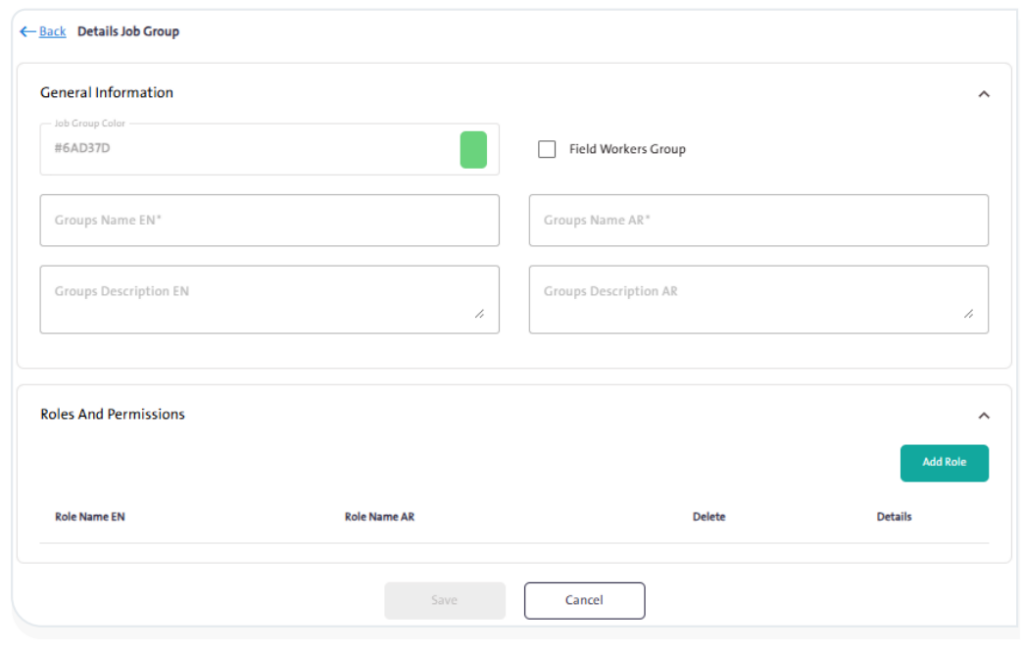
- «Role Name in Arabic»
- «Role Name in English»
- Define the permissions and privileges to be granted for each role, which include the following options:
– «Settings»
– «Main Screen»
– «Groups and Users»
– «Task Assignment»
– «Data Transfer Log»
– «Tracking»
– «Progress»
– «Survey Map»
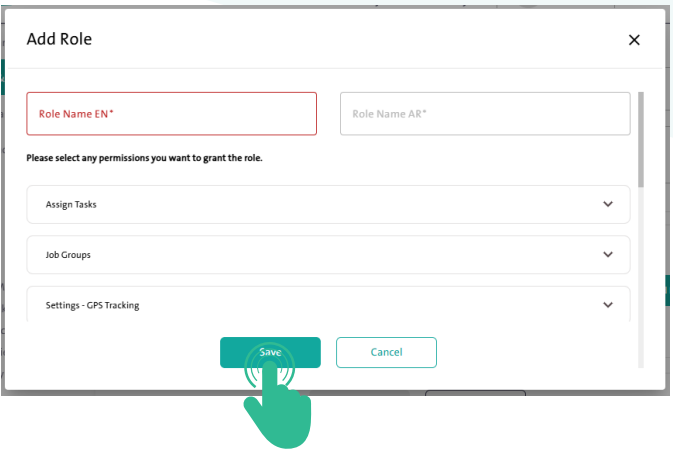
- Once you have completed filling in the role details, click «Save»
 .
.
INFO
- You can delete the role by clicking the “Delete” icon
 .
. - You can edit the role details by clicking the “Details” icon
 .
.
- Once you have finished adding the roles for the group, click “Save” . The new group will then appear under the “Workgroups” tab, as shown in the figure below.
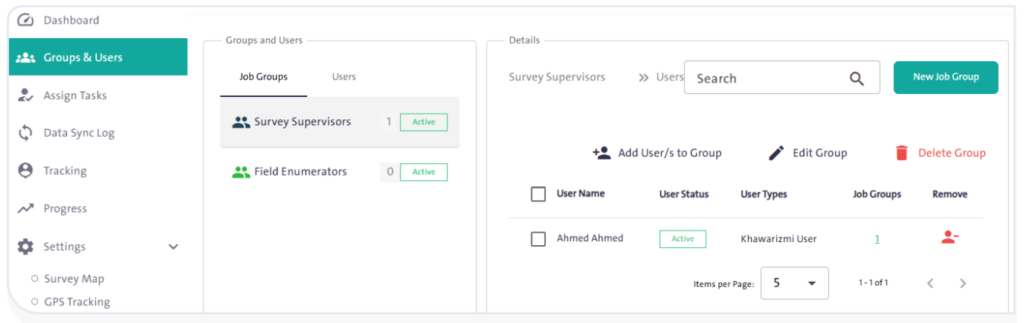
- You can add users to the group by following these steps:
– Click “Add User/s to Group”  to display the following screen:
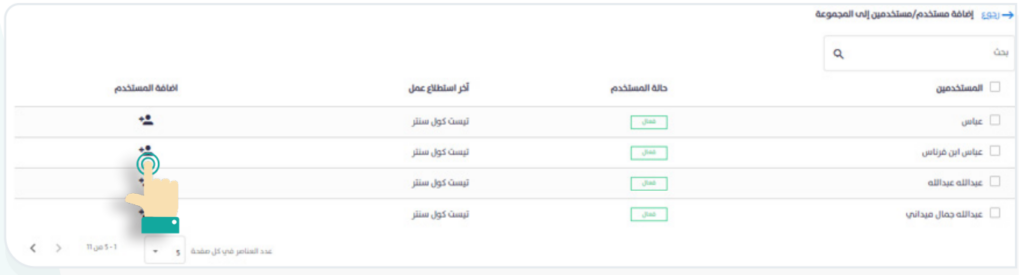
– Click the “Add” icon  next to the username to include the user in the group, as shown in the figure below.
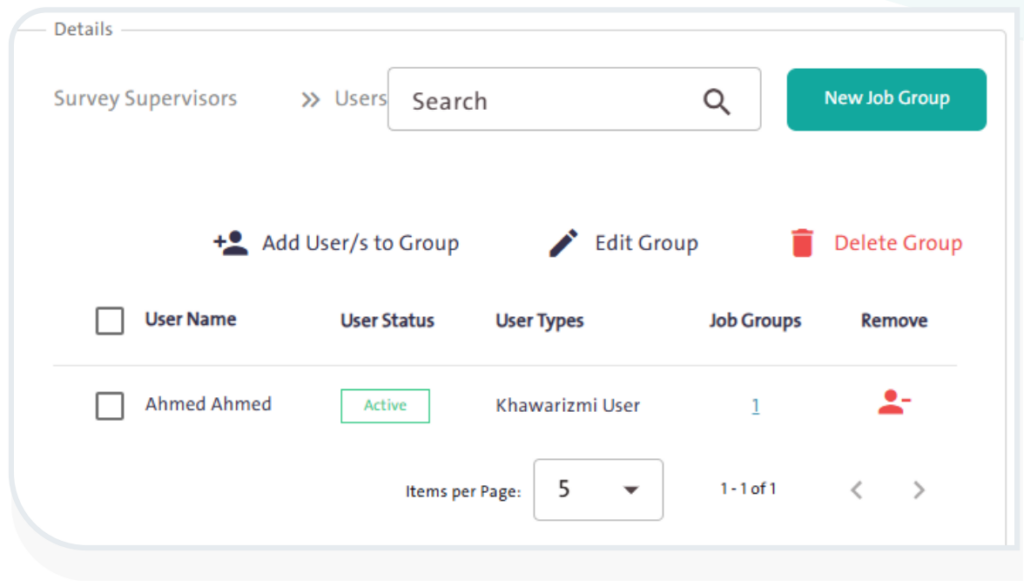
- Click “Edit Group”
 to modify the group details.
 - You can delete the group by clicking the “Delete Group” icon
 . A warning message will appear asking you to confirm the deletion.
INFO
- You cannot delete the group if it contains one or more users.
- You can remove a user from the group by clicking the “Remove” icon
 .
. - You can search for a specific user within the group by typing the username in the search box
 , then clicking the “Search” icon
  . The result will appear on the users’ table.
