Preview the surveys available to the user in the Field Management System #
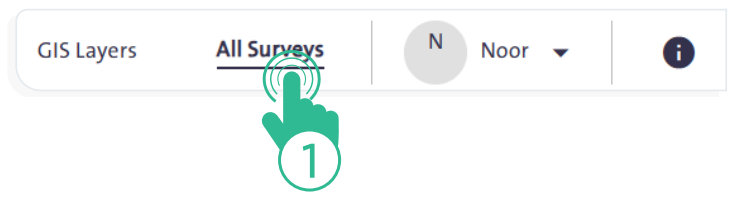
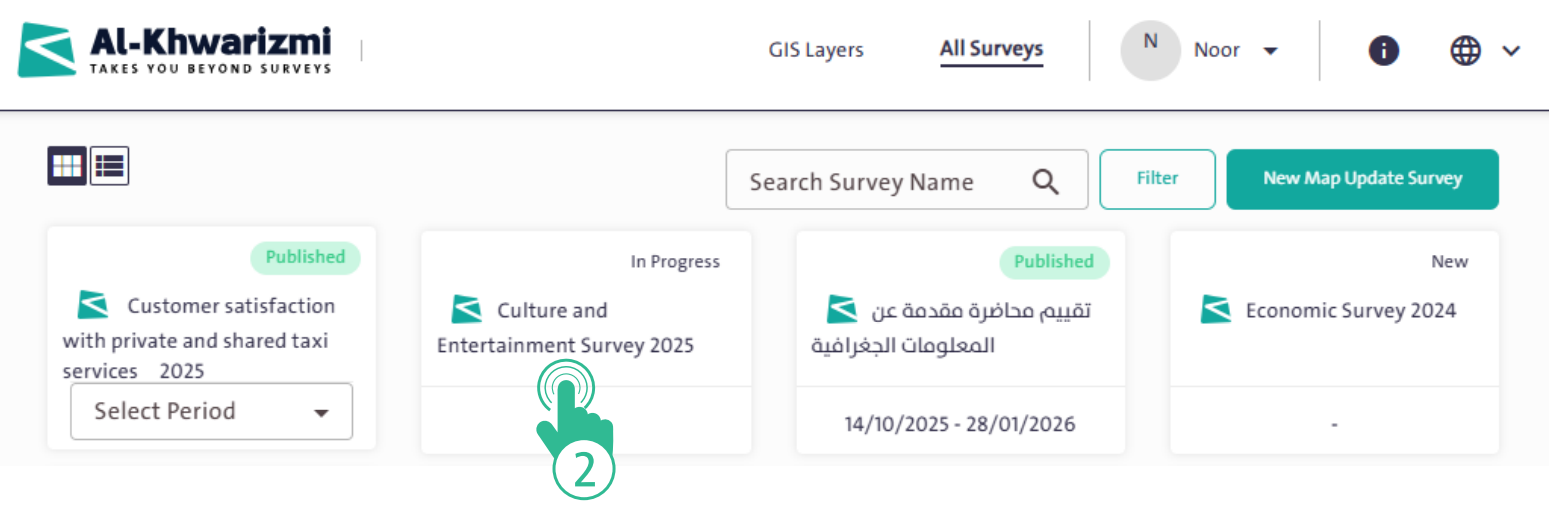
- Click “All Surveys” link displayed at the top of the main “Field Management” System screen to open a window showing the forms created either by you or by your team members, where Field Management was selected as one of the data collection sources. These forms fall under the following categories:
- Published
- Completed
- Closed
- New
- Draft
- In Progress
- Select the survey you want to work on to navigate to its main screen.
INFO
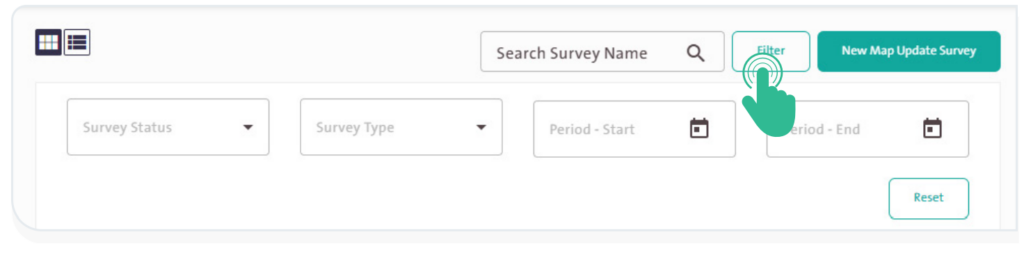
- You can filter the displayed surveys by clicking “Filter”
 then follow these steps:
- Select the survey status.
- Select the survey type.
- Select survey period starts and ends date.
- To cancel filtering and return to the default view, click “Reset”
 .
.
- To search for a specific survey, type its name in the “Search Survey Name” box
 , then click the “Search” icon
  . Browse the surveys displayed in the search results.
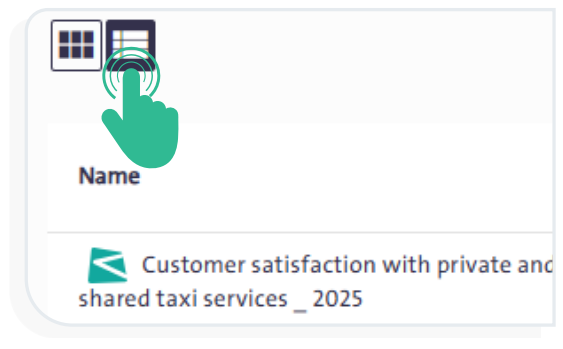
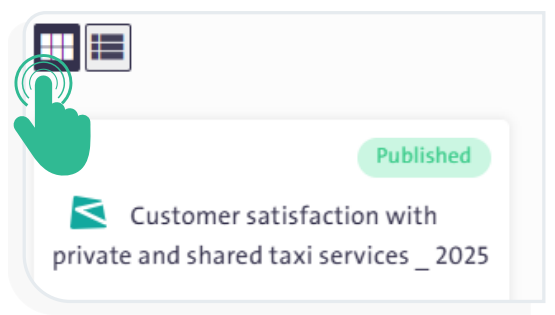
 - Switch between the two display modes of Surveys on the main page:
– Card View:
Click the “Cards” icon  to display forms as cards.
– List View:
Click the “List” icon  to display forms in a list format.