Assign tasks to users, enabling them to follow up on surveys through the list. #
Through “Task Assignment”, you can define the user responsible for monitoring each survey using the list, by assigning the areas that each researcher is accountable for. This helps facilitate and organize the data collection process.
To select an area and assign a user to it using the list, follow these steps:
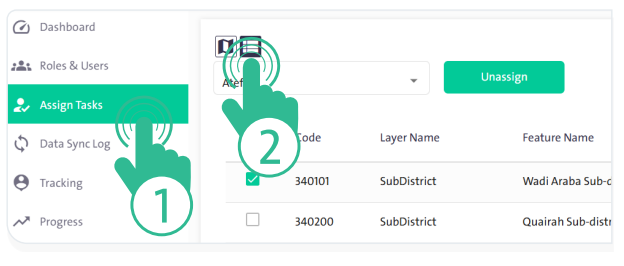
- Select “Assign Tasks“
 from the side control menu.
- Click on the “List” icon
 to assign tasks using the list.
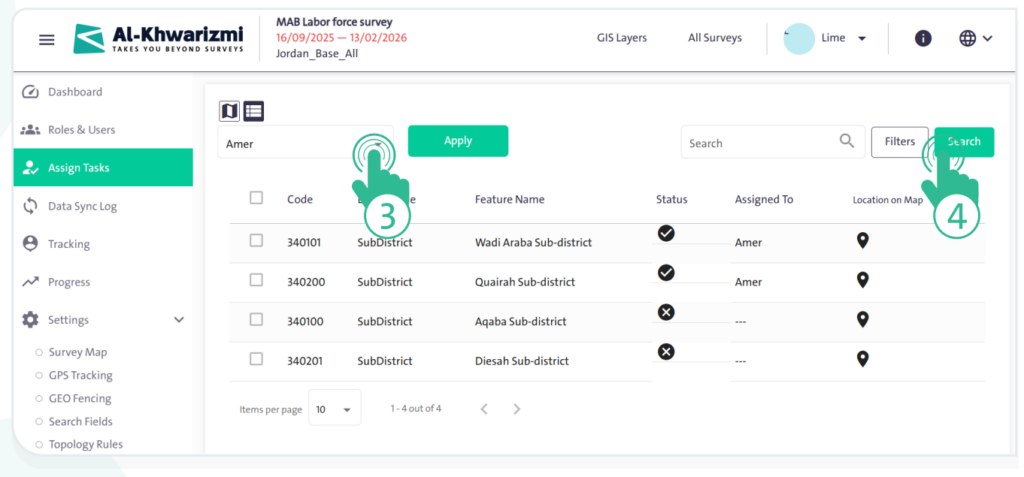
- Choose the user to whom the task will be assigned from the “Select Users” dropdown list at the top of the map.
- Click “Search” to display the geographic layer to be assigned.
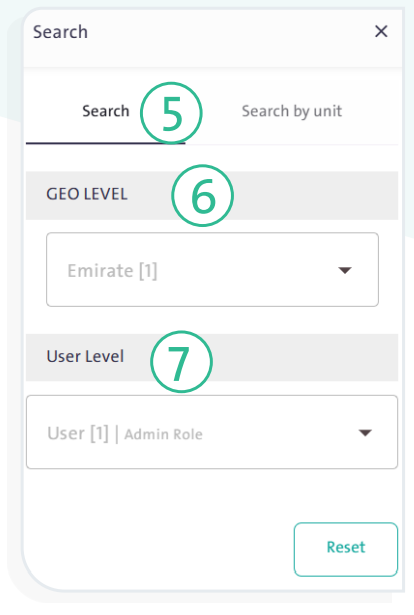
- Select the “Search” tab, then follow these steps:
- Define the geographic level. You can specify the governorate, city, district, neighborhood, and street.
- Define the user level by selecting both the user and the sub-user.
- Once the search options are completed, a table will appear containing:
- Code.
- Layer name.
- Area name.
- Status: layers are either assigned
 or unassigned
  .
. - Assigned to: shows the user’s name, or the number of users if the layer is assigned to more than one user.
- Location on the map: click the “Location on Map” icon
 next to the layer name to navigate to its position on the map.
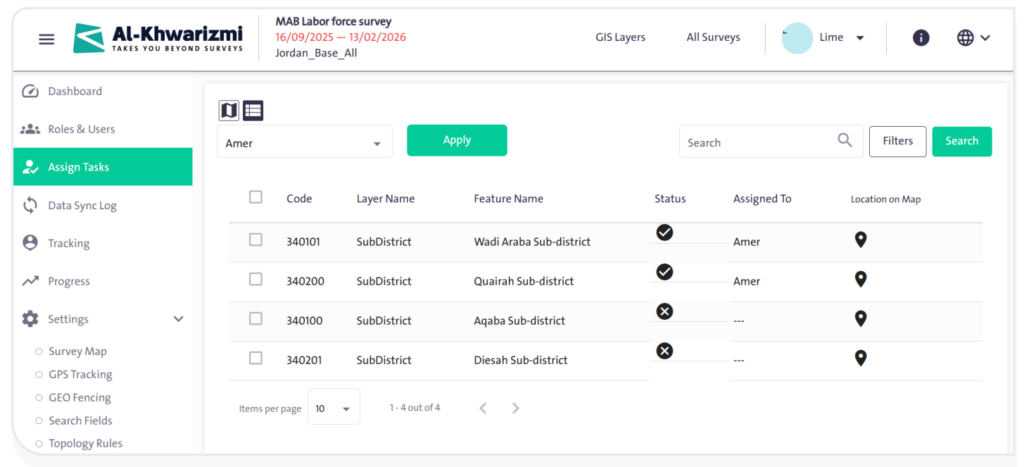
- Click the checkbox next to the layer icon in the table to select it.
- Click “Assign”
 to change the layer status icon from unassigned to assigned .
INFO
- You can remove a layer assignment using the list by following these steps:
- Select the assigned layer, which is indicated by its status icon
- Click “Unassign”
 .
.
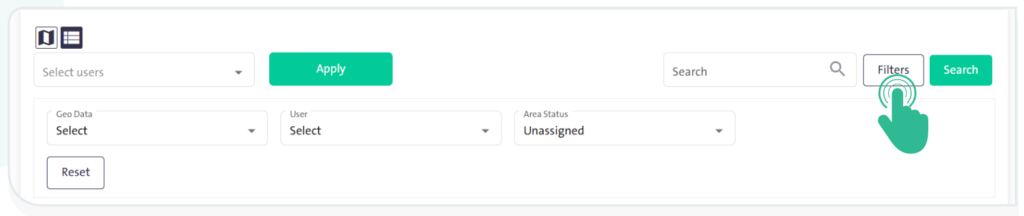
- You can filter the displayed table by clicking “Filters”
 and then selecting any of the following:
- Geographic data.
- User.
- Area status.