Create New Map Update Survey #
The Field Management System allows you to create a new map update Survey by following these steps:
- Click the “All Surveys” link at the top of the system screen.
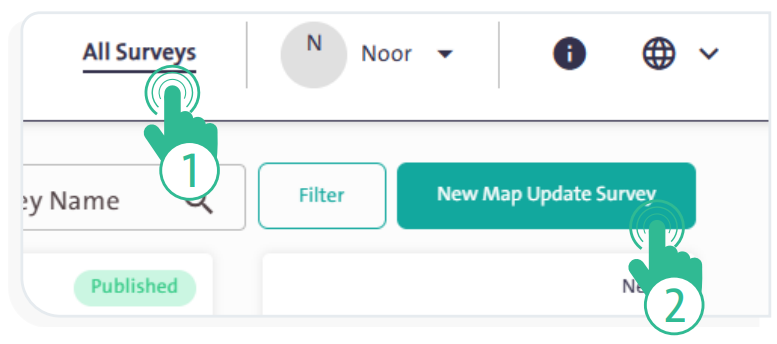
- Click “New Map Update Survey” icon
 ; a side window will appear where you can perform the following actions:
– Enter “Description in English”.
– Enter “Description in Arabic”.
– Select “Start Date”.
– Select “End Date”.
– Choose “Geographic Information Version”.
– Select “Assignment Level”.
– Enter “Remarks”, if any.
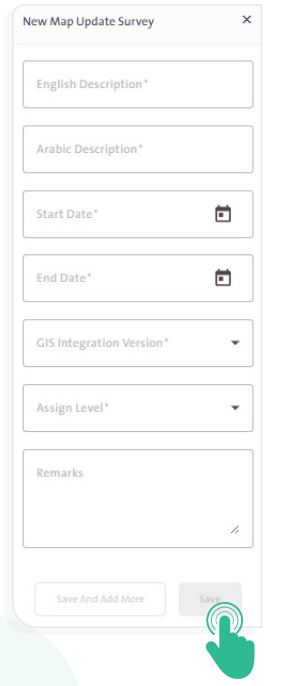
- To complete the creation of the new map update form, click “Save”
 .
. - To save the form and continue creating another new form, click “Save and Add More”
 .
.
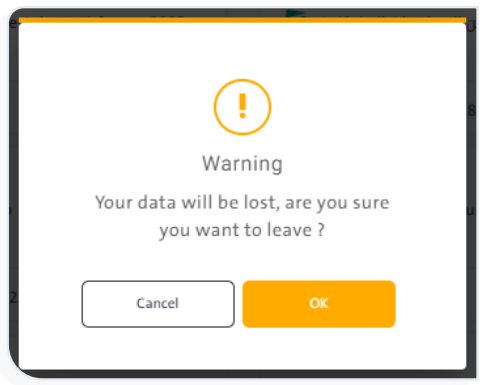
- To cancel form creation, click the “Close” icon at the top of the side window. A warning message will appear indicating that you will lose your entered data. To confirm, click “OK”
 ; to return to the form, click “Cancel”
 .
.
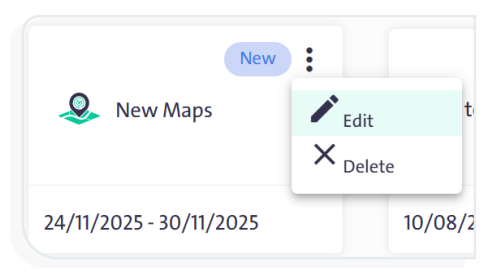
- You can delete or edit a map update form by clicking “More”
 next to the form name in the “All Surveys“ screen, then selecting either “Edit”
  or “Delete”
 .
.