Skip to content
  • Home
  • Documentation
  • Contact
  • About
Menu
  • Home
  • Documentation
  • Contact
  • About
العربية

Designer

34
  • Introduction to the Survey Designer
  • Start As Survey Designer
  • Frequently Asked Questions (FAQ)
  • Error Messages and Their Solutions
  • Designer Dashboard
    • Overview
    • Edit Profile Information
    • Log Out
    • Change Language
    • View Key Information of Al-Khwarizmi Platform
    • View Survey Summary
  • My Surveys Screen
    • Overview
    • Viewing Surveys
    • Creating a New Survey
    • Copy a Survey from Templates
    • Duplicate an Existing Survey
    • Edit an Existing Survey
    • Delete a Survey
    • Add a Survey to Templates
    • View Survey Versions
    • Survey Reports
    • Sort the Surveys Table
    • Search the Table Data
  • Control Panel
    • Overview
    • Add organization
    • Search for a User Role
    • Creating New Groups
    • Add Users to Groups
    • Search for Users
    • Add Users
    • Assign Surveys
    • Survey Timeline View
    • Enrich the Question Bank
    • Upload a Survey Sample
    • Enrich the Coding List

Call Center

27
  • About the Call Center
  • Getting Started with the Call Center
  • Frequently Asked Questions (FAQs)
  • Error Messages and Solutions
  • Call Center Dashboard
    • Overview
    • Edit Profile Information
    • Log Out
    • Change Language
    • Sending Notifications
    • View Key Information of Al-Khwarizmi Platform
    • Viewing Available Surveys
  • Form Screen
    • Overview
    • Displaying the Survey Main Screen
    • Adding a New Job Group
    • Add Users to Survey Roles
    • Preview Users and Their Job Group
    • Add a New Queue
    • Add a New Queue
    • Assign Queues
    • Distribute Workload in Queues
    • Pull a survey Unit
    • View Task Log
    • Filter the Task Table
    • Task Table Column Settings
    • Assign Units from Queue
    • Search for a Unit
    • Add a Call

Field Managment

29
  • Introduction to Field Management
  • Getting Started as a Field Management
  • Frequently Asked Questions (FAQ)
  • Error Messages and Solutions
  • Field Managment Dashboard
    • Overview
    • Edit Personal Account Information
    • Change Password
    • Logout
    • View Al-Khwarizmi Platform Information
    • Change Language
    • View Available Surveys
    • Create New Map Update Survey
    • Preview of Geographic Maps
    • Add a New Map
  • Form Screen
    • Overview
    • Display the survey Main Screen
    • Create a New Workgroup
    • Add Users to the Survey Job Group
    • Assign Tasks Using Maps
    • Assigning Tasks Using the List
    • Assigning Units to Users
    • Viewing the Data Transfer Log
    • Configuring Data Sync Log Table Columns
    • Tracking
    • Field Researchers’ Progress
    • Table Column Settings for the Progress Report
    • Configure Survey Settings
    • Configure Survey Settings
    • Add a New Version of Geographic Layers
View Categories
  • Home
  • Docs
  • Call Center
  • Getting Started with the Call Center

Getting Started with the Call Center

User Manual Instructions #

To get the most out of this user manual, please follow these guidelines:

  • The manual is organized into sections that follow the operational sequence.
  • Read from the beginning to learn the core concepts before moving to advanced sections.
  • Follow the step-by-step instructions provided in each section.
  • Use the illustrations and tables as references to better understand each process.
  • Review the attached tips to avoid common mistakes.
  • If you encounter difficulties, refer to the Frequently Asked Questions (FAQ) section.
  • Contact the dedicated technical support team for immediate assistance.
  • This manual is updated periodically; check the latest version for up-to-date information.

System Login #

In this section, you will learn the steps to log in to the Call Center System—one of the Al-Khwarizmi platform modules—which is the first step toward accessing the tools and features the system provides. This part explains how to correctly enter your credentials to access your account, along with the available options that simplify the login process, such as changing the language or recovering your password in case you forget it.
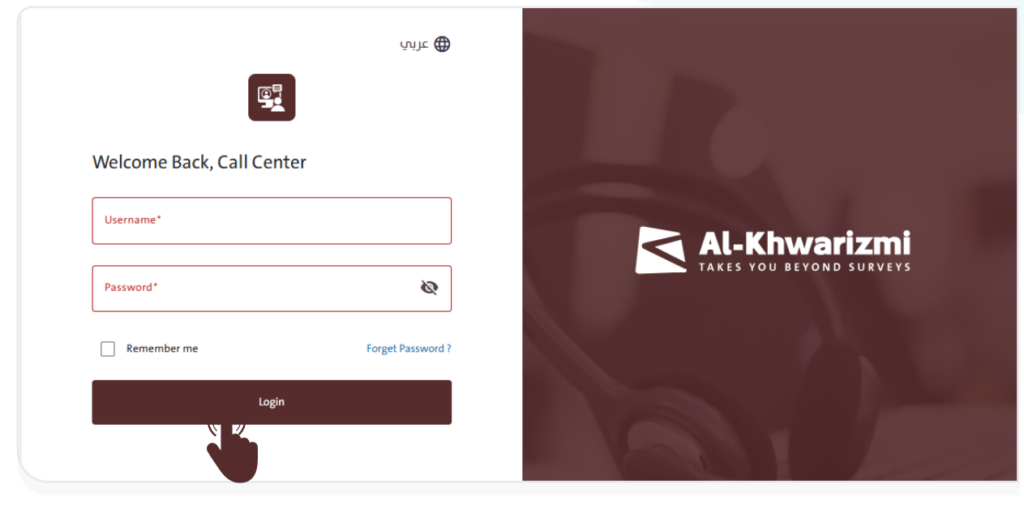
To access the Call Center System, open the system link in your web browser.

  • Log in to the system by following these steps:
    • Enter your Username.
    • Enter your Password.

  • Click “Login” to proceed to the Call Center System’s main dashboard.
INFO
  • To view the entered password, click the “Show” icon .
  • To change the system language, click the “Language” icon , then select either Arabic or English from the list.
  • If the username or password is incorrect, a warning message will appear. Make sure you are using the correct login credentials for the system.

Reset Password #

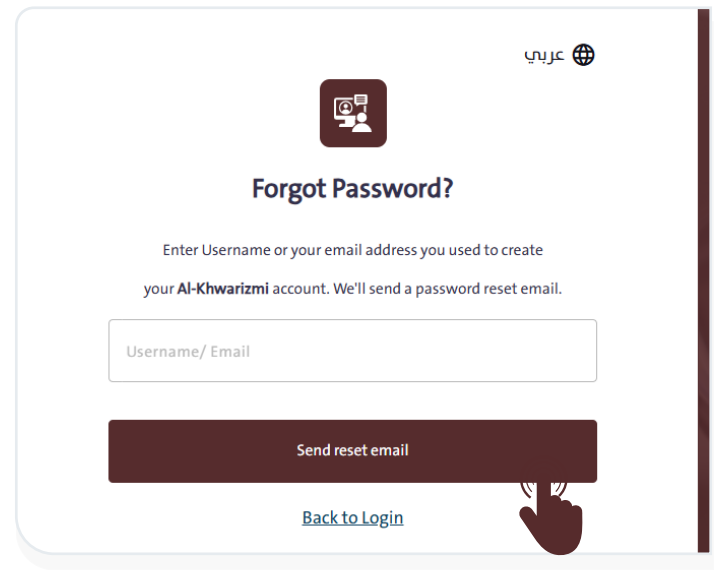
The system offers a password reset feature in case you forget your password. To reset it, follow these steps:

  • Click “Forgot Password” below the Username and Password fields. A window will appear asking you to enter the email address used when creating your account.
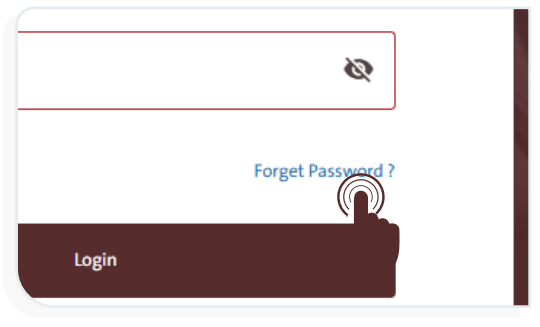
  • Click “Send reset email” to receive a message containing the instructions for resetting your password. Check both your inbox and spam folder if you do not see the email right away.

What are your Feelings

  • Happy
  • Normal
  • Sad
Frequently Asked Questions (FAQs)About the Call Center
Table of Contents
  • User Manual Instructions
  • System Login
  • Reset Password

More Links

  • Abbreviations
  • Dictionary
  • Conventions
  • Al Khwarizmi Products
  • Al Khwarizmi Designer

Al Khwarizmi User Guide by Realsoft. All Rights Reserved.