Skip to content
  • Home
  • Documentation
  • Contact
  • About
Menu
  • Home
  • Documentation
  • Contact
  • About
العربية

Designer

34
  • Introduction to the Survey Designer
  • Start As Survey Designer
  • Frequently Asked Questions (FAQ)
  • Error Messages and Their Solutions
  • Designer Dashboard
    • Overview
    • Edit Profile Information
    • Log Out
    • Change Language
    • View Key Information of Al-Khwarizmi Platform
    • View Survey Summary
  • My Surveys Screen
    • Overview
    • Viewing Surveys
    • Creating a New Survey
    • Copy a Survey from Templates
    • Duplicate an Existing Survey
    • Edit an Existing Survey
    • Delete a Survey
    • Add a Survey to Templates
    • View Survey Versions
    • Survey Reports
    • Sort the Surveys Table
    • Search the Table Data
  • Control Panel
    • Overview
    • Add organization
    • Search for a User Role
    • Creating New Groups
    • Add Users to Groups
    • Search for Users
    • Add Users
    • Assign Surveys
    • Survey Timeline View
    • Enrich the Question Bank
    • Upload a Survey Sample
    • Enrich the Coding List

Call Center

27
  • About the Call Center
  • Getting Started with the Call Center
  • Frequently Asked Questions (FAQs)
  • Error Messages and Solutions
  • Call Center Dashboard
    • Overview
    • Edit Profile Information
    • Log Out
    • Change Language
    • Sending Notifications
    • View Key Information of Al-Khwarizmi Platform
    • Viewing Available Surveys
  • Form Screen
    • Overview
    • Displaying the Survey Main Screen
    • Adding a New Job Group
    • Add Users to Survey Roles
    • Preview Users and Their Job Group
    • Add a New Queue
    • Add a New Queue
    • Assign Queues
    • Distribute Workload in Queues
    • Pull a survey Unit
    • View Task Log
    • Filter the Task Table
    • Task Table Column Settings
    • Assign Units from Queue
    • Search for a Unit
    • Add a Call

Field Managment

29
  • Introduction to Field Management
  • Getting Started as a Field Management
  • Frequently Asked Questions (FAQ)
  • Error Messages and Solutions
  • Field Managment Dashboard
    • Overview
    • Edit Personal Account Information
    • Change Password
    • Logout
    • View Al-Khwarizmi Platform Information
    • Change Language
    • View Available Surveys
    • Create New Map Update Survey
    • Preview of Geographic Maps
    • Add a New Map
  • Form Screen
    • Overview
    • Display the survey Main Screen
    • Create a New Workgroup
    • Add Users to the Survey Job Group
    • Assign Tasks Using Maps
    • Assigning Tasks Using the List
    • Assigning Units to Users
    • Viewing the Data Transfer Log
    • Configuring Data Sync Log Table Columns
    • Tracking
    • Field Researchers’ Progress
    • Table Column Settings for the Progress Report
    • Configure Survey Settings
    • Configure Survey Settings
    • Add a New Version of Geographic Layers
View Categories
  • Home
  • Docs
  • Call Center
  • Frequently Asked Questions (FAQs)

Frequently Asked Questions (FAQs)

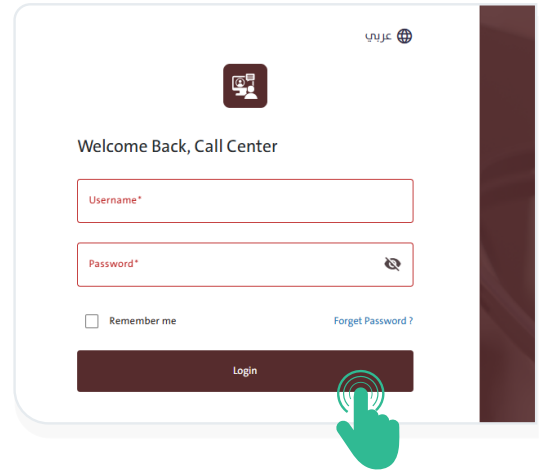
How Can I Log In to the System? #

  • Open the system link.
  • Enter your username and password.
  • Click the “Login” button.

What Should I Do If I Forget My Password? #

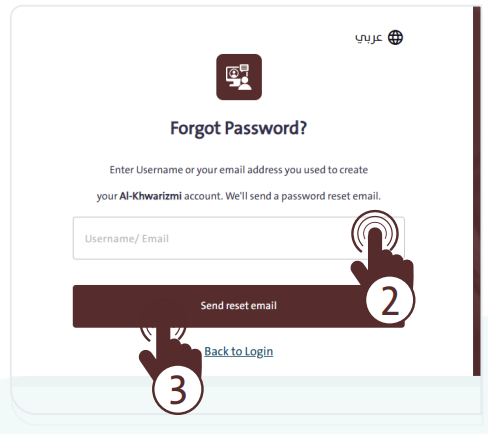
  • Click “Forgot Password” on the login page.
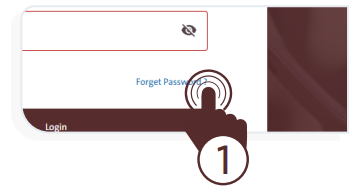
  • Enter your email address and click “Send reset email”.
  • Follow the instructions in the email to reset your password.
How Can I Change the System Language? #
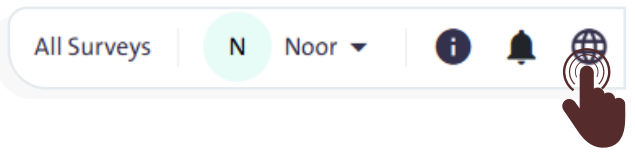
  • Click the “Languages” icon at the top of the screen to switch between the two system languages:
    • Arabic
    • English
  • Select the language that suits you to facilitate your work in the Call Center System.
  • The system interface will switch to the selected language.

How Can I Send a Notification to a Specific User? #

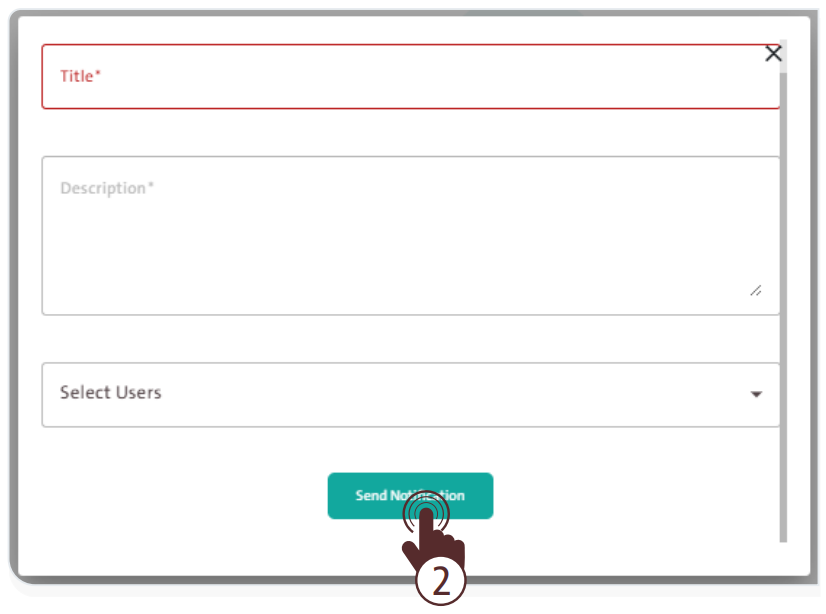
  • Click the “Notifications” icon .
  • Select “Send Notification”.
  • Enter the title and description, select the user, then click “Send Notification”.
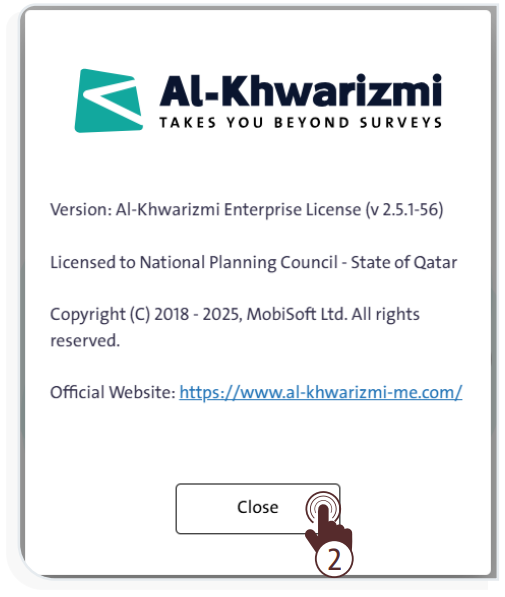
How Can I View the Platform’s Main Information? #

  • Click the “Information” icon.
  • Review version details and copyright information.
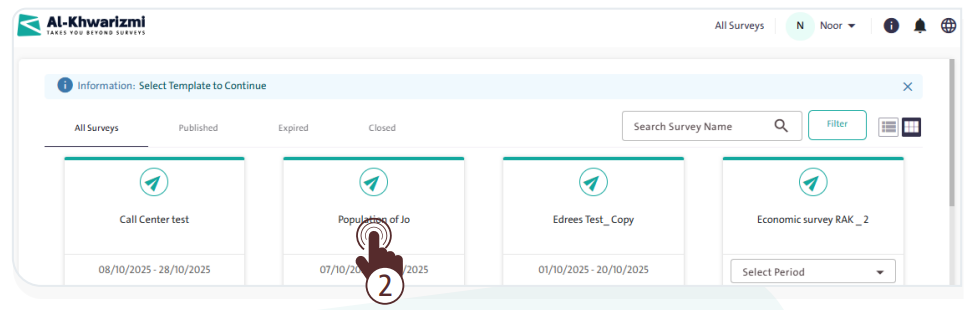
How Can I View the Available Surveys? #

  • Click “All Surveys”.
  • Use the filter or search option to find the required survey.
How Can I Add Users to the survey? #

  • Select “Groups and Users” from the side control menu.
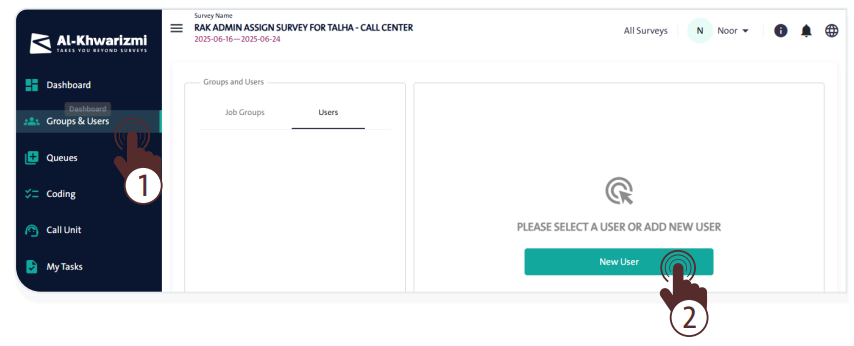
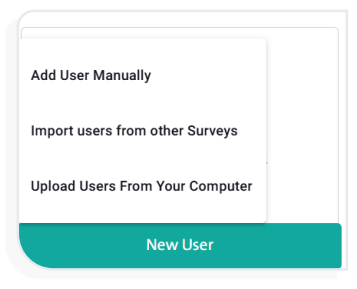
  • Click “New User” and a window will pop up where you can choose the method that suits you to add the user.
How Can I Add a New Queue? #

  • Select “Queues” from the side control menu. The following window will appear:
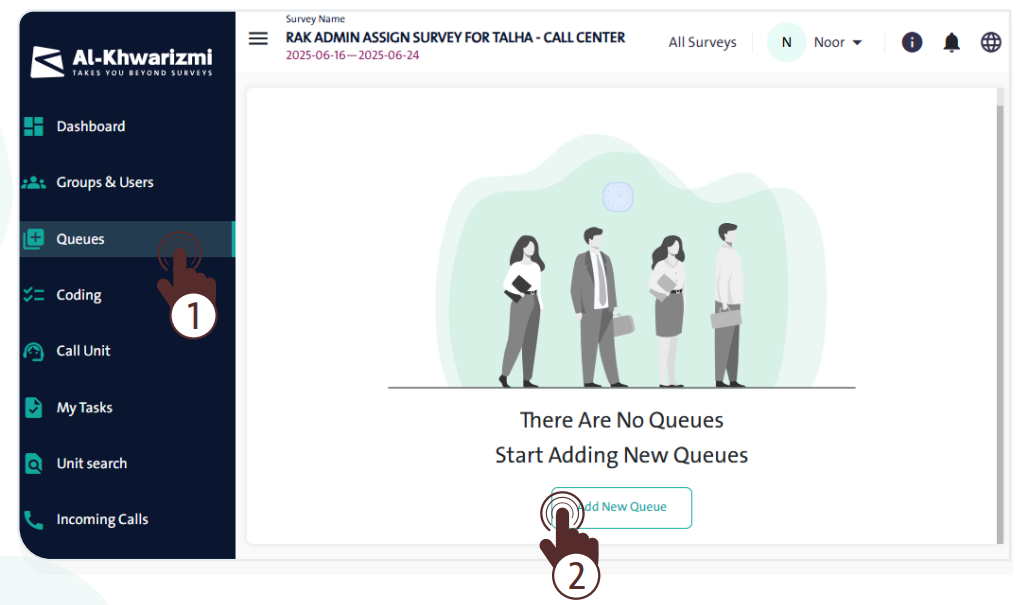
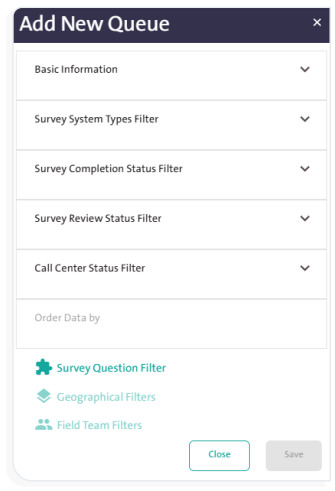
  • Click “Add New Queue” and a window will pop up containing the options and parameters that allow you to add the queue.
How Can I Distribute Workload in Queues? #

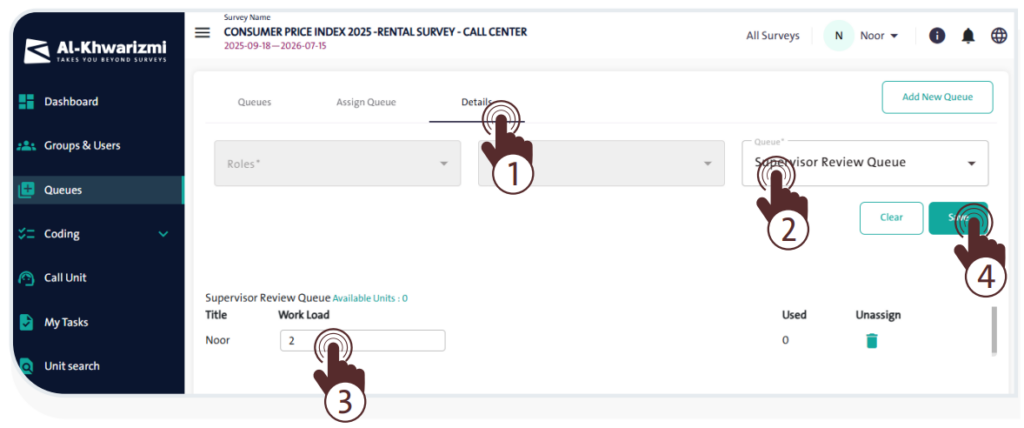
  • Select “Queues” from the side control menu, then follow the steps as shown in the next screen:
    • Click the “Details” tab.
    • Select the role, user, or queue.
    • Distribute the workload as appropriate.
    • Click “Save”.

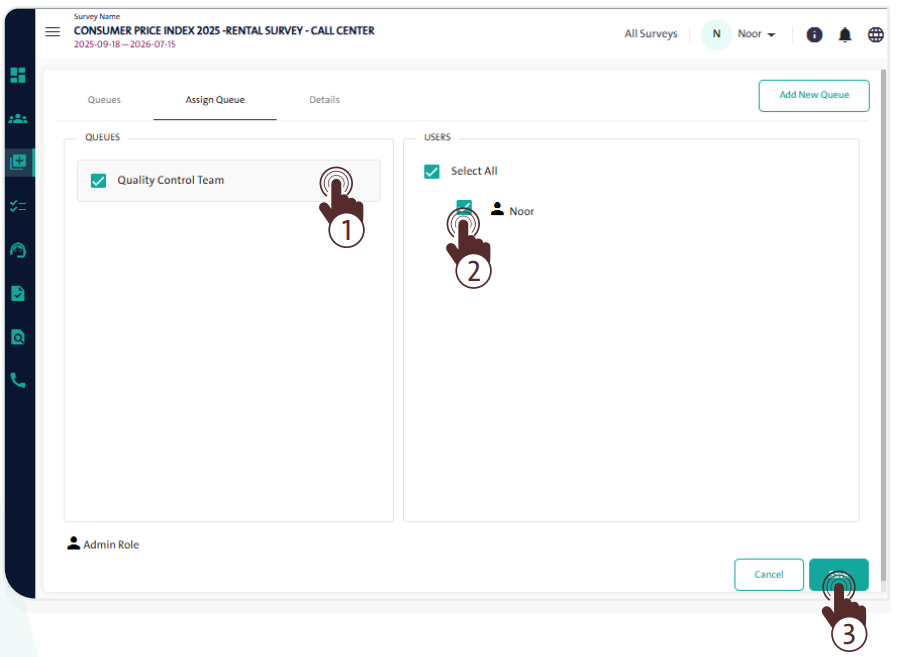
How Can I Assign Queues to Users? #

  • Select “Queues” from the side control menu, then follow the steps as shown in the next screen:
    • Click the “Assign Queues” tab.
    • Select the queue.
    • Select the user to whom the queue will be assigned.
    • Click “Save”.

How Can I Retrieve a Unit from the Queue? #

  • Select “Call Unit” from the side control menu. The following screen will appear:
    • Select one of the methods to retrieve a sample from the queue, which include:
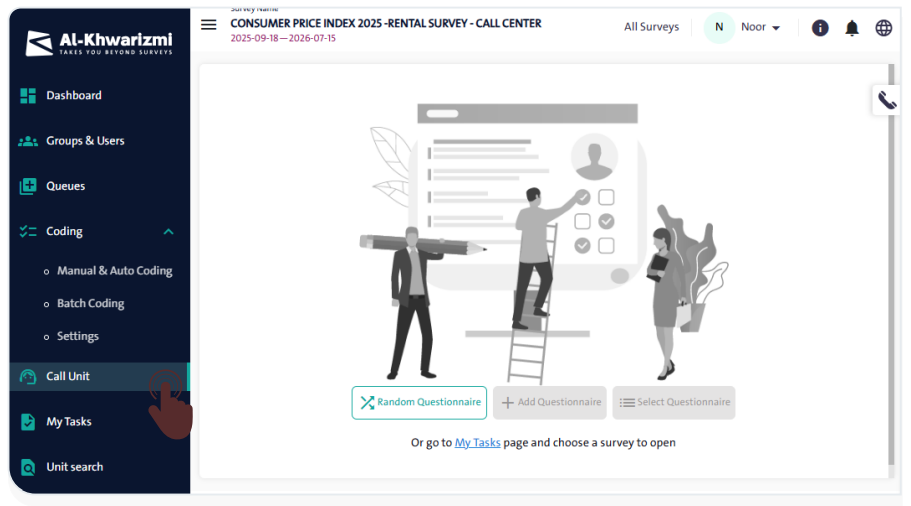
      • Random Questionnaire.
      • Add Questionnaire.
      • Select Questionnaire.
    • You can also go to your My Tasks page and choose a specific survey.

How Can I View the Task Log? #

  • Select “My Tasks” from the side control menu. The following screen will appear:
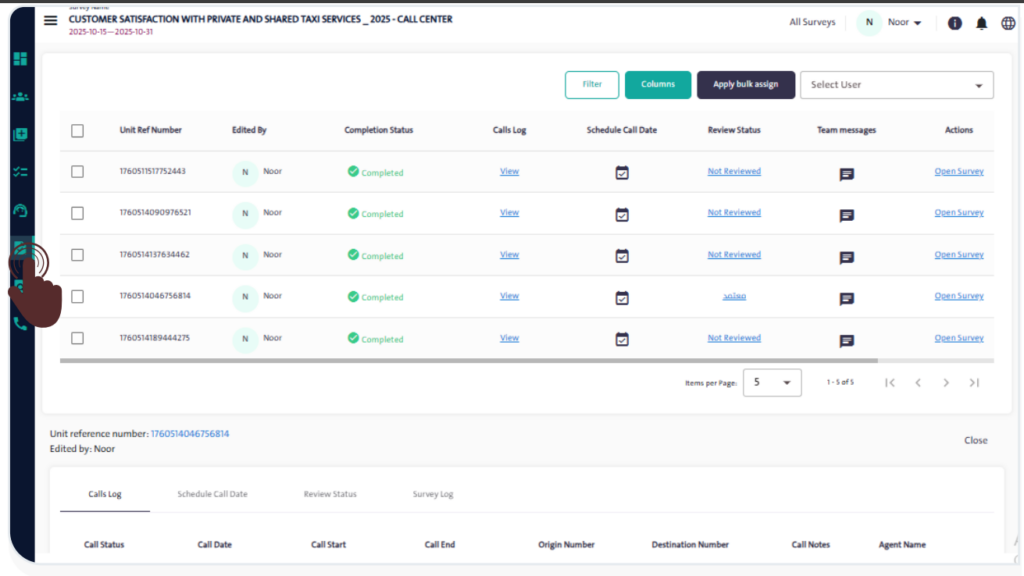
  • Review the table of your assigned tasks.

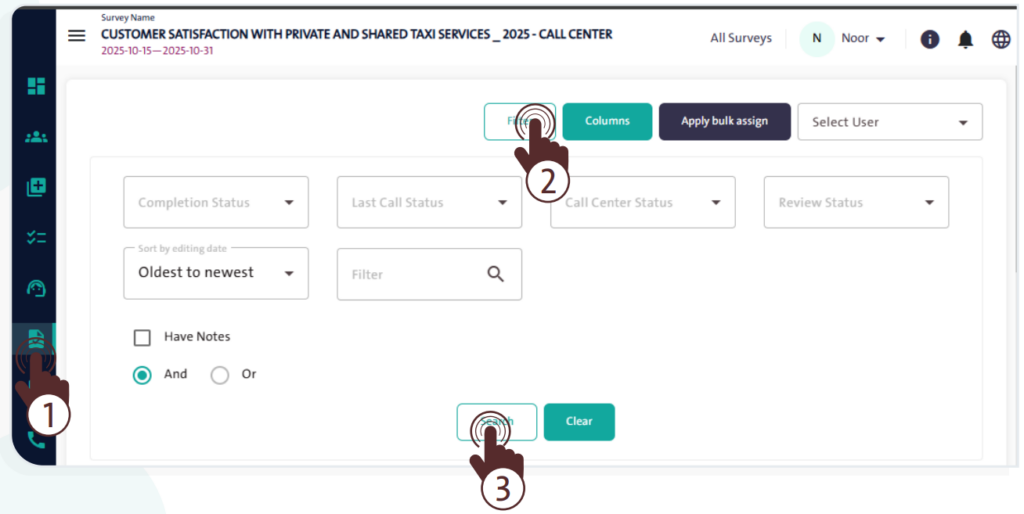
How Can I Filter the Task Table? #

  • Click “Filter” on the “My Tasks” screen.
  • Select the filter criteria and click “Search”.

How Can I Send the survey to Another User? #

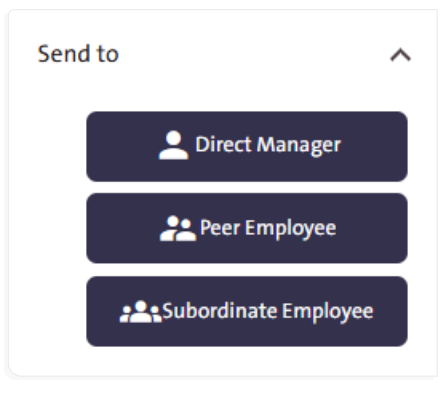
  • Click “Send To” on the Contact Unit screen.
  • Choose the destination to which the form will be sent, including:
    • Direct manager.
    • Peer employee.
    • Subordinate employee.
  • Follow the steps specific to each destination.
How Can I Solve Any Other Issue I Face? #

  • Review the current system user manual.
  • Contact the technical support team.

What are your Feelings

  • Happy
  • Normal
  • Sad
Error Messages and SolutionsGetting Started with the Call Center
Table of Contents
  • How Can I Log In to the System?
  • What Should I Do If I Forget My Password?
  • How Can I Change the System Language?
  • How Can I Send a Notification to a Specific User?
  • How Can I View the Platform’s Main Information?
  • How Can I View the Available Surveys?
  • How Can I Add Users to the survey?
  • How Can I Add a New Queue?
  • How Can I Distribute Workload in Queues?
  • How Can I Assign Queues to Users?
  • How Can I Retrieve a Unit from the Queue?
  • How Can I View the Task Log?
  • How Can I Filter the Task Table?
  • How Can I Send the survey to Another User?
  • How Can I Solve Any Other Issue I Face?

More Links

  • Abbreviations
  • Dictionary
  • Conventions
  • Al Khwarizmi Products
  • Al Khwarizmi Designer

Al Khwarizmi User Guide by Realsoft. All Rights Reserved.