
Add a new queue to organize form reviews. #
Queues are created to organize, monitor, and review forms that meet the criteria you define, helping you filter forms and distribute them to your team. To do this, follow these steps:
- From the side control menu, select “Queues”.

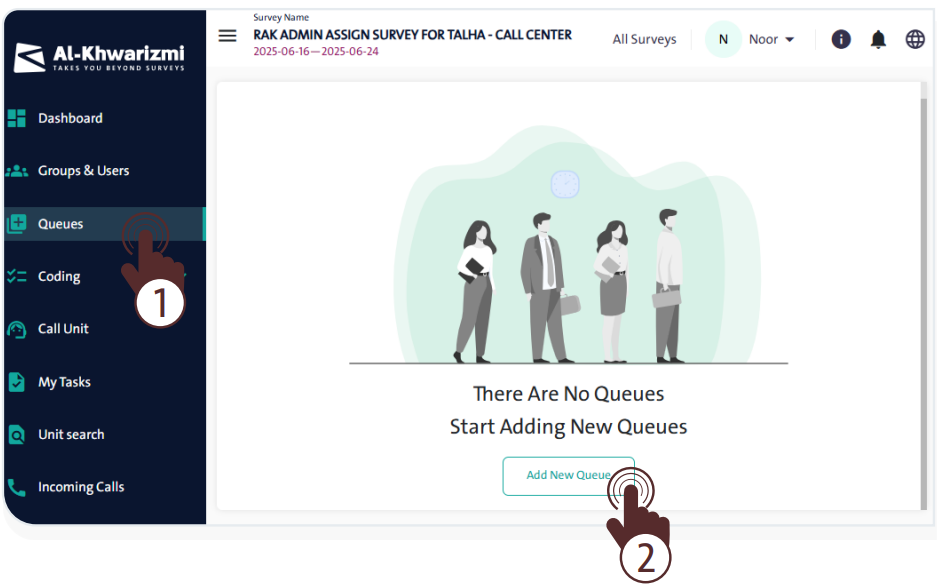
- Click “Add New Queue” A window will pop up with options and criteria that allow you to add the queue as follows:
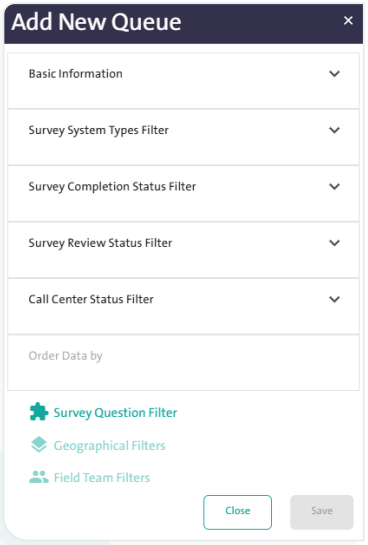
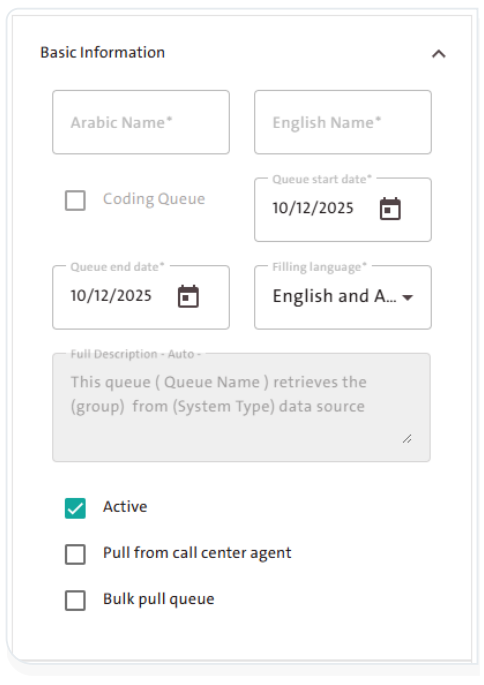
First: Basic Information: #
Fill in the following basic queue details:
- Arabic Name
- English Name
- Coding Queue: When enabled, Servais are filtered and reviewed based on the question you select, and the corresponding coding list will be displayed.
- Queue Start Date
- Queue End Date: once this date is reached, the queue will be automatically disabled.
- Filling Language
- Active Option: to enable or disable the queue.
- Pull from Call Center Agent: to work on a form that falls under another queue.
Second: Survey System Filters: #
Servais to be included in the queue are filtered based on several criteria, including:
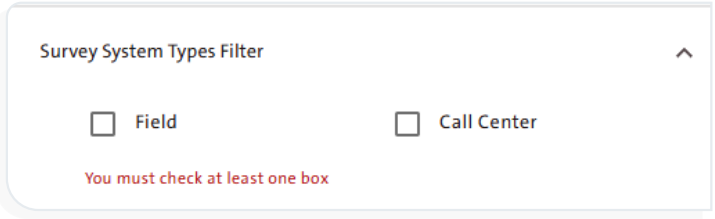
Survey System Types Filter #
Use the following filter options to sort Servais by their type in the system. Your selection must include at least one of these sources:
- Field
- Call Center
- Web Link
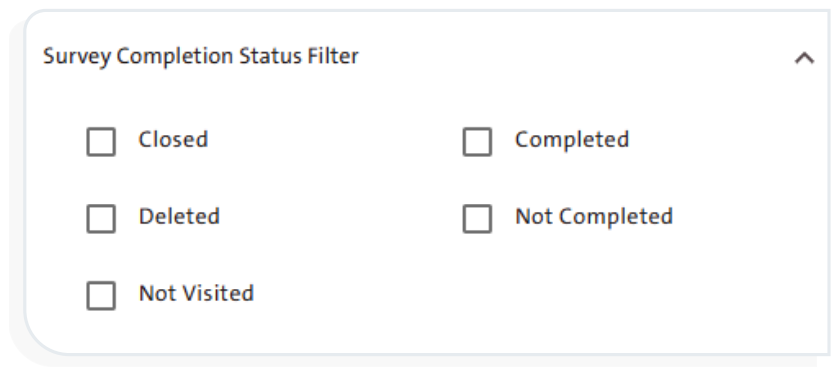
Survey Completion Status Filter #
You can create queues based on the filter criteria of form completion status, which are defined after contacting respondents. These include:
- Closed at Office
- Completed
- Deleted
- Not completed
- Not Visited
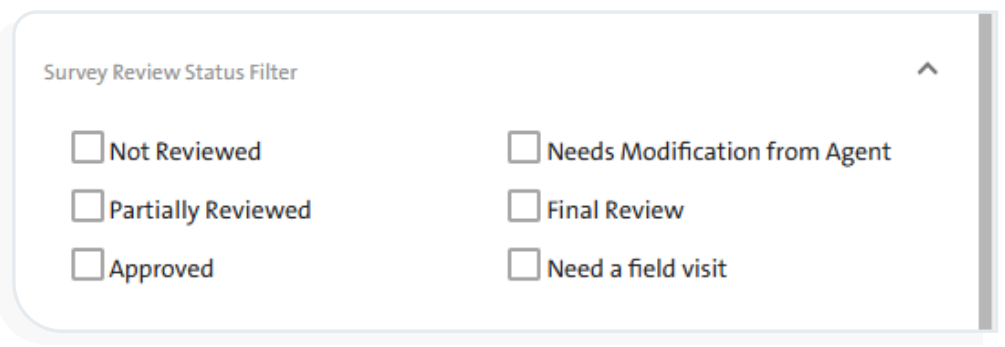
Survey Review Status Filter #
You can filter the forms you want to include in the queue based on their review status from the Call Center. You can select from the following statuses:
- Not Reviewed
- Approved
- Final Review
- Not Reviewed
- Partially Reviewed
- Needs Modification from Agent
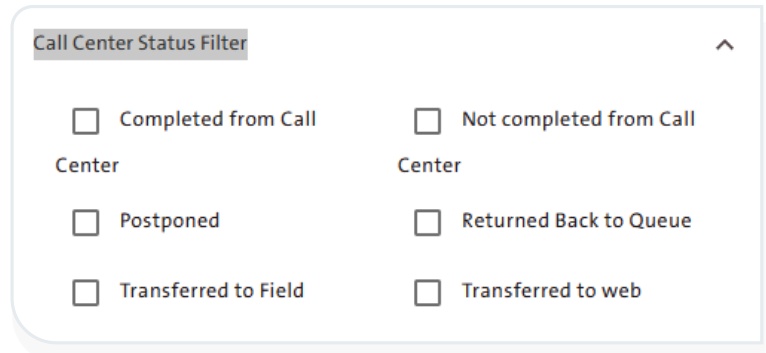
Call Center Status Filter #
You can filter forms based on their status in the Call Center. The available statuses include:
- Completed from Call Center: The respondent answered all the form questions.
- Not complete from Call Center: The respondent did not answer all the form questions.
- Postponed: The respondent requested to postpone filling out the form to a later time.
- Returned Back to Queue: A sample returned to the queue from which it was pulled.
- Transferred to Field: A form transferred from the Call Center to the field.
- Transferred to Web: The respondent requested to receive the form via email.
Filter by Form Questions #
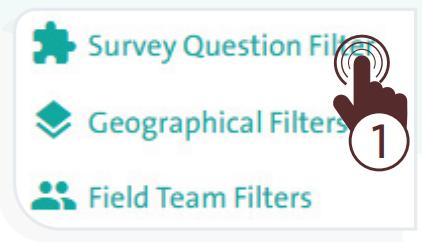
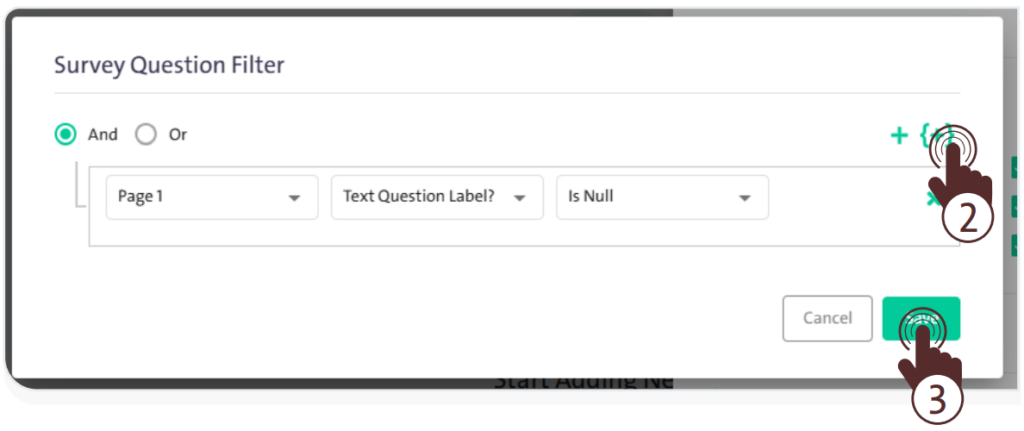
You can filter the queue based on a specific condition, depending on the response to a particular question in the form. To filter by form questions, follow these steps:
- Click “Survey Questions Filter”.
- Click the “Add” icon
 to add a rule.
 - Once you finish configuring the rule options, click “Save”
 to add the filter rule.
Geographic Filter #
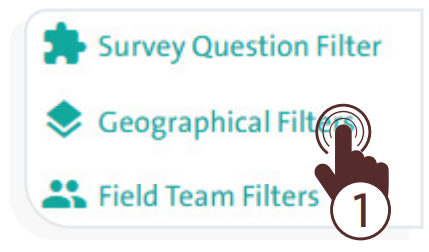
Use this filter to sort forms by a specific geographic area. To enable the “Geographic Filter” follow these steps:
- Select the “Field” option from the “Survey System Types Filter” tab.
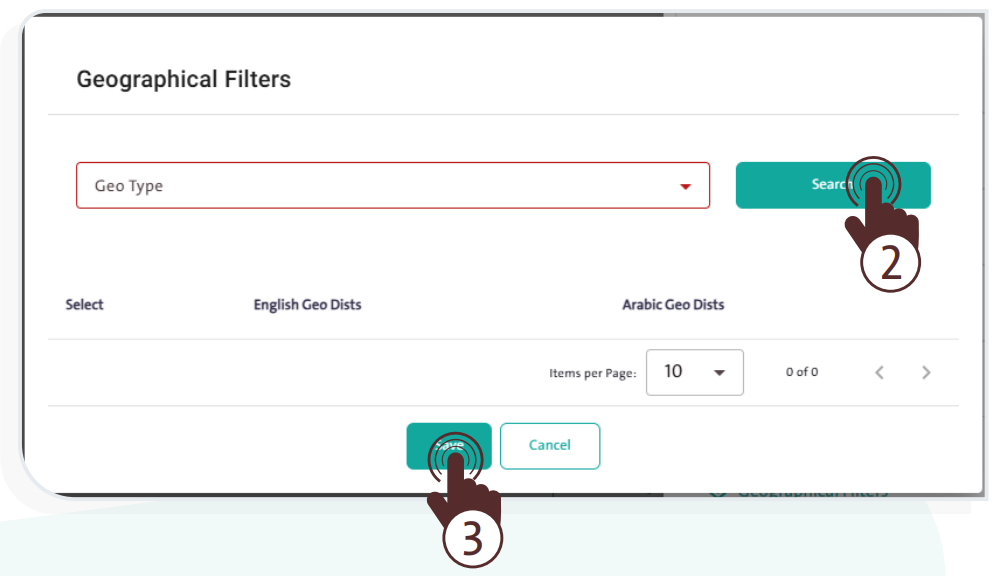
- Choose “Geographic Filter” A window will pop up; select the geographic type, then click “Search”
 .
.
- Select the geographic area from the search results table.
- Once you complete the above steps, click “Save” to apply the filter.
Field Team Filters #
You can filter the forms filled out by a specific field team member and add them to the queue by following these steps:
- Select the “Field” option from the “Survey System Types Filter” tab.
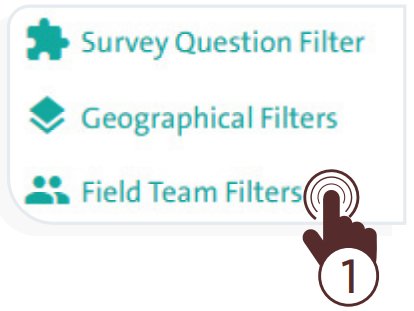
- Choose “Field Team Filters” A window will pop up; select the role and user roles, then click “Search” .
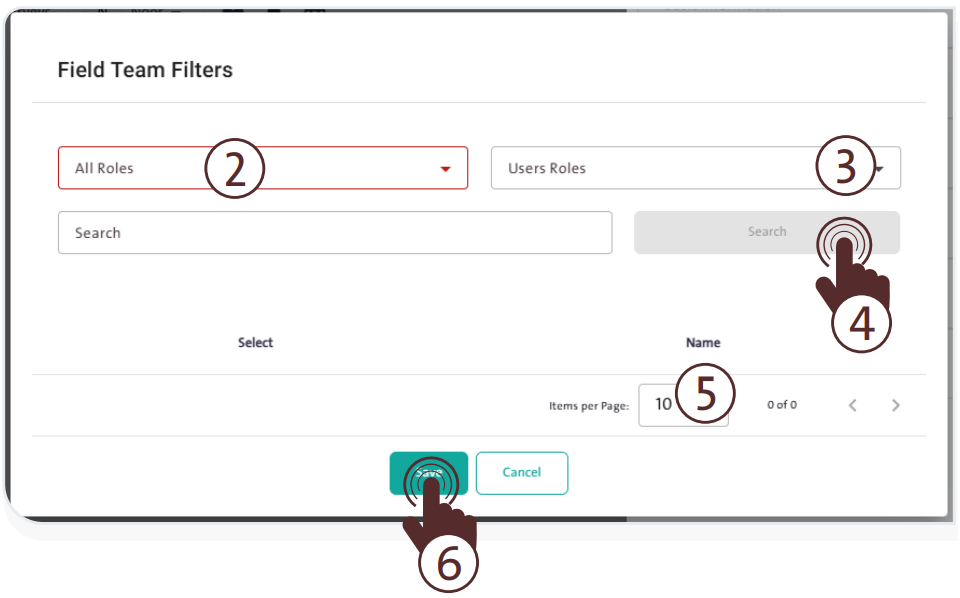
- Select the field users from the search results table.
- Once you complete the above steps, click “Save” to apply the filter.
- After selecting all queue filter criteria, click “Save”
 to finalize and apply the queue.
- Each queue provides several control options that allow you to perform the following actions:

- Edit Queue: Click the “Edit” icon
 to make the required changes.
 - Copy Queue: Click the “Copy Queue” icon
 to create an identical copy.
 - Delete Queue: Click the “Delete Queue” icon
 to remove it permanently.
 - Refresh Queue: Click the “Refresh Queue” icon
 to update the data according to the latest changes.
