
Display the basic information of a specific survey. #
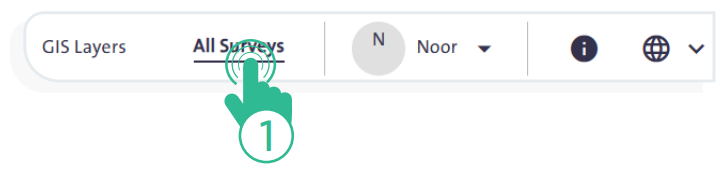
- Click “All Surveys” link at the top of the system page to open a screen displaying the Surveys created by you or by your team members.
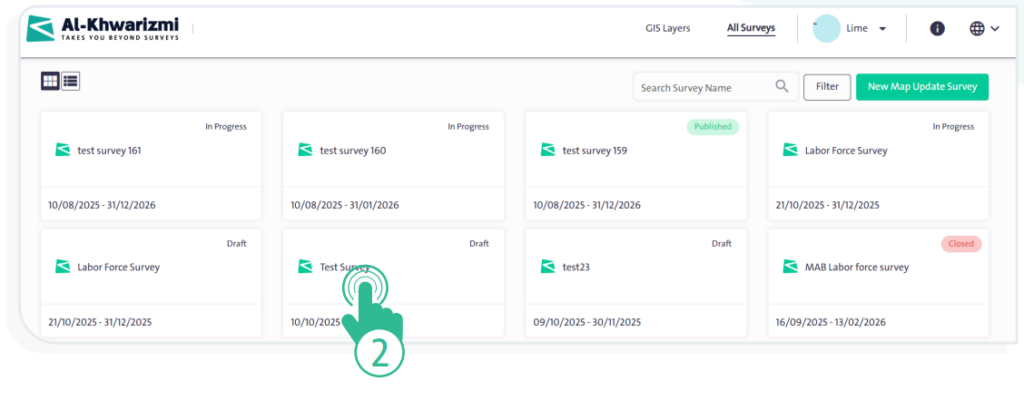
- Click the survey you are working on to open its main screen, which includes:
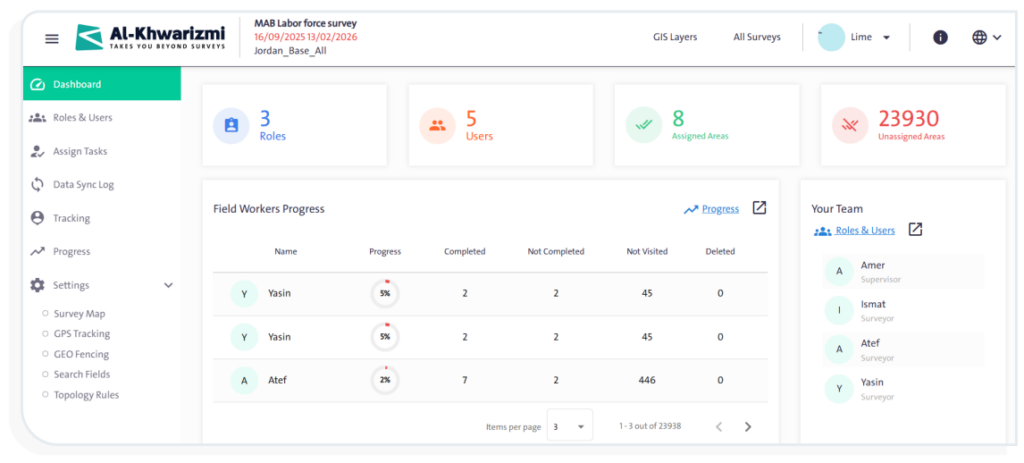
- The counts of roles, users, assigned areas, and unassigned areas.
- The following tables and information:
- “Field Workers Progress” which includes:
- Names: Displays the names of field researchers participating in the form.
- Progress: The completion percentage of each researcher in the fieldwork for this form.
- Completed: The number of units successfully completed by the researcher.
- Not Completed: The number of units started but not yet completed by the researcher.
- Not Visited: The number of units not yet visited by the researcher.
- Deleted: The number of units deleted for any reason, which are still considered in the completion percentage.
- “Field Workers Progress” which includes:
- «Active Users»: Users currently active on the map in real time.
- «Your Team»: Users working on filling out the same form.
- « Geo Level Progress»: Displays the completion rates per geographic area by showing completed, incomplete, unvisited, and deleted units in each area.
