
Change Account Password in the Field Management System. #
- Click your name displayed at the top of the screen; a drop-down menu will appear. From the menu, select My Account to open the account information editing window, as shown in the figure below:
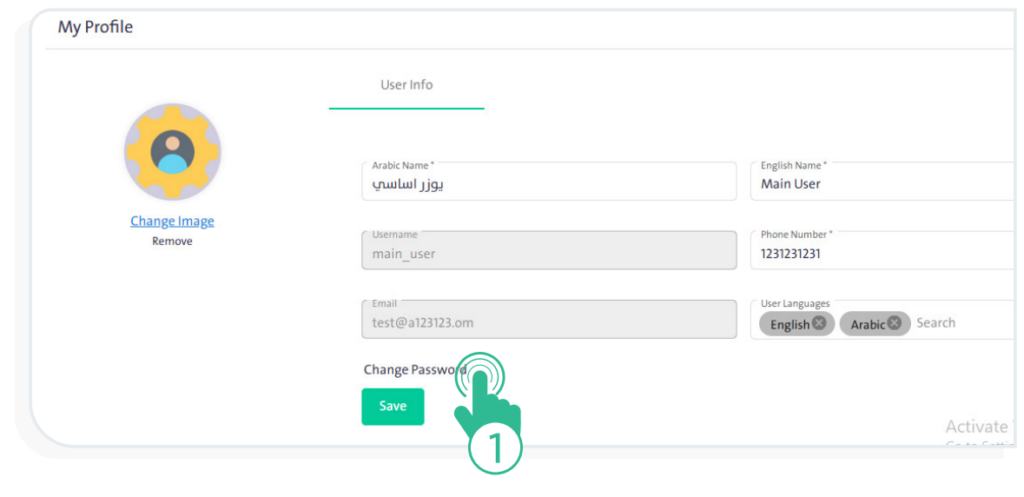
- Select “Change Password” to display the following fields:
- Old password
- New password
- Confirm password
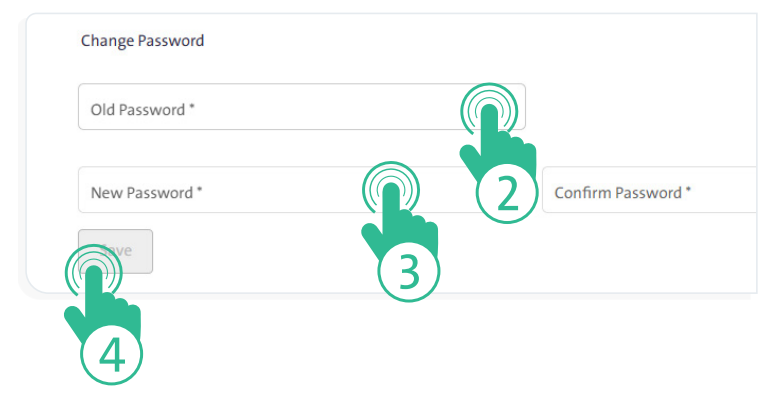
- Enter your current password, then type a new password and re-enter it correctly in the Confirm Password field. Finally, click “Save”
 .
.
INFO
- Password creation must follow the following criteria:
- Must contain at least 8 characters.
- Must contain at least one uppercase letter.
- Must contain at least one lowercase letter.
- Must contain at least one special character.
- The username and password are considered sensitive and confidential information. Keep them secure and do not share them with others.
