User Manual Instructions #
To get the most out of this user manual, please follow these guidelines
- The manual is organized into sections that follow the operational sequence.
- Read from the beginning to learn the core concepts before moving to advanced sections.
- Follow the step-by-step instructions provided in each section.
- Use the illustrations and tables as references to understand each process better.
- Review the attached tips to avoid common mistakes.
- If you encounter difficulties, refer to the Frequently Asked Questions (FAQ) section.
- Contact the dedicated technical support team for immediate assistance.
- This manual is updated periodically; check the latest version for up-to-date information.
Logging in to the System #
n this section, you will learn the steps to log in to the Field Management System — one of the systems within the Al-Khwarizmi platform. This is the first step to accessing the tools and features the system provides. This part explains how to enter your credentials correctly to access your account, as well as the available options to facilitate the login process, such as changing the language or recovering your password if forgotten.
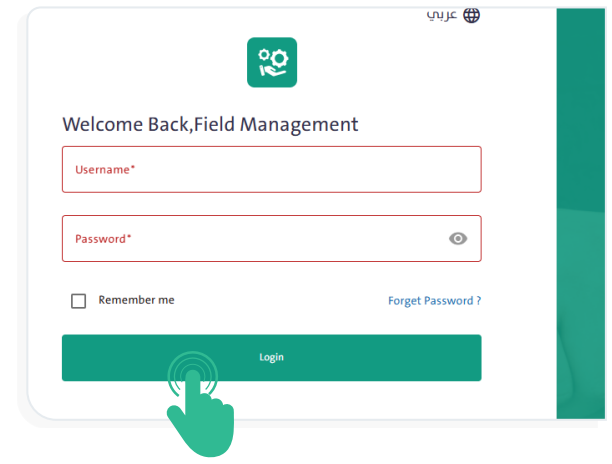
- To access the Field Management System, open the system link through your web browser.
- Log in to the system by following these steps:
- Enter your username.
- Enter your password.
- Click “Login” to proceed to the main dashboard of the Field Management System.
INFO
- To view the entered password, click the “Show” icon
 .
. - To change the system language, click the “Language” icon
 , then select either Arabic or English from the list.
 - If the username or password is incorrect, a warning message will appear. Make sure you are using the correct login credentials for the system.
Reset Password #
The system provides a password reset feature if you forget your password. To reset it, follow these steps:
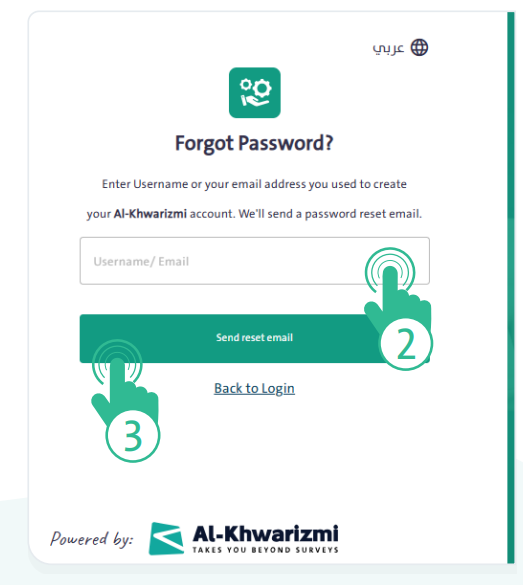
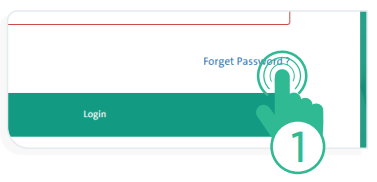
- Click “Forgot Password” below the Username and Password fields. A window will appear asking you to enter the email address used when creating your account.
- Click “Send Reset Email” to receive a message containing the instructions for resetting your password.
- Check both your inbox and spam folder if you do not see the email right away.