Quick access to a specific user. #
To quickly access a specific user in the Survey Designer system, follow these steps:
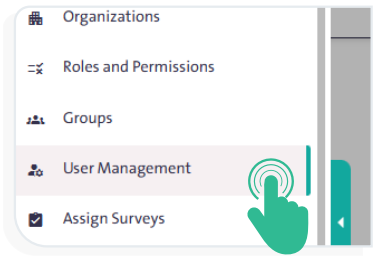
- From the side Control Panel, select “User Management”.
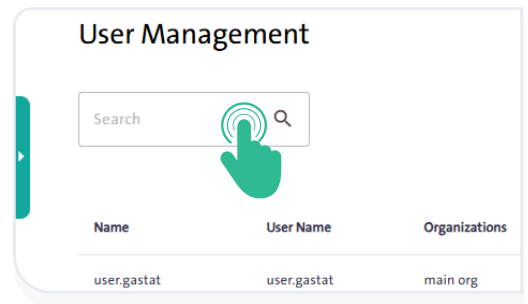
- Type the username in the search box, then click “Search”
 .
. - The search results will appear in the table below the search box.
INFO
- You can delete a user by clicking the “Delete” icon
 next to their name in the User Management table.
- You can view and edit user information by clicking the “Details” icon
 next to their name in the User Management table. A window will appear where you can:
- Edit User: Click “Edit User”
 to modify the details of an existing user. This can be either the active system user or another user.
 - Activate/Deactivate User: Click “Activate User”
 to enable the user account, or click “Deactivate User”
 .
.
- Edit User: Click “Edit User”
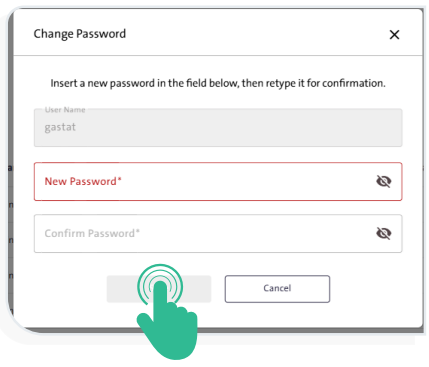
- Change the user’s password by clicking “Change Password” icon Then choose a password that meets the following criteria:
- Contains at least 8 characters.
- Contains at least one uppercase letter.
- Contains at least one lowercase letter.
- Contains at least one special character.
- Enter the password in the “New Password” field, then re-enter it in the “Confirm Password” field and click “Save”
 .
.