Add a new organization to manage surveys. #
You can add a new contact to the Survey Designer system by following these steps:
- From the side Control Panel, select “Organizations”.

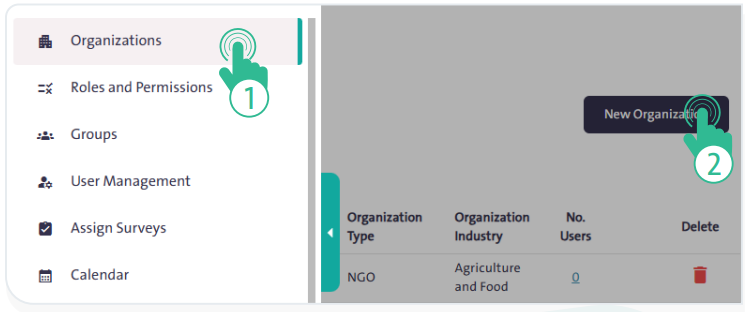
- Click “New Organization”
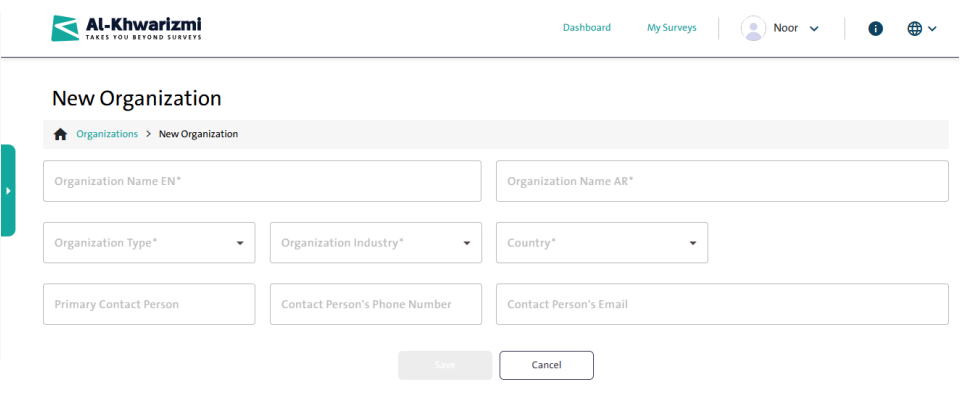
 to display a window that includes:
- Organization name in English
- Organization name in Arabic
- Organization type
- Organization Industry
- Country
- Primary contact person
- Contact phone number
- Contact Person’s Email
- Once all data has been entered, click “Save”
 .
.
- Click “Cancel”
 if you want to cancel the addition process.
INFO
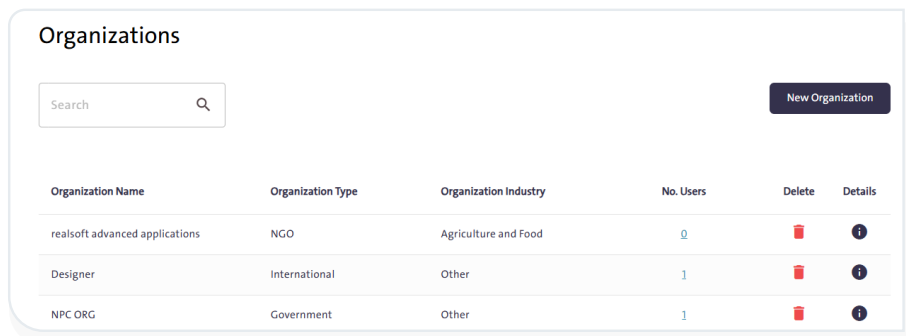
- To delete a contact, click “Delete”
 next to the contact’s name.
 - To view and edit contact details, click “Details”
 next to the contact’s name.
 - To search for an organization, use the search box; the results will appear on the table below the search box.
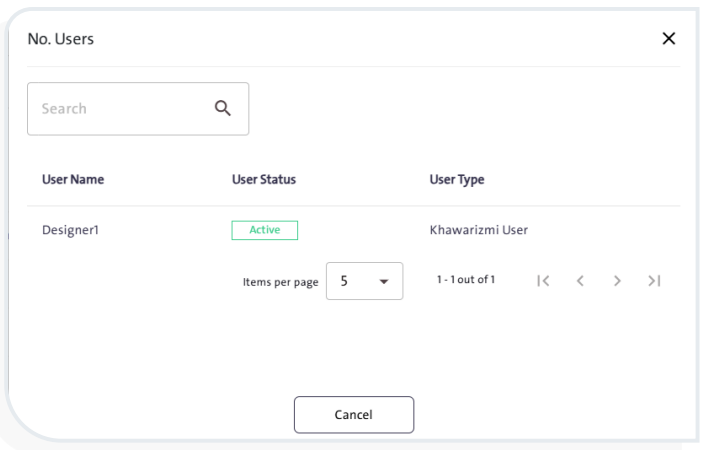
- To view the individuals associated with a specific organization, click “No. Users”. A table will pop up displaying the following data:
– Username
– User status
– User Type