
How can I log in to the system? #
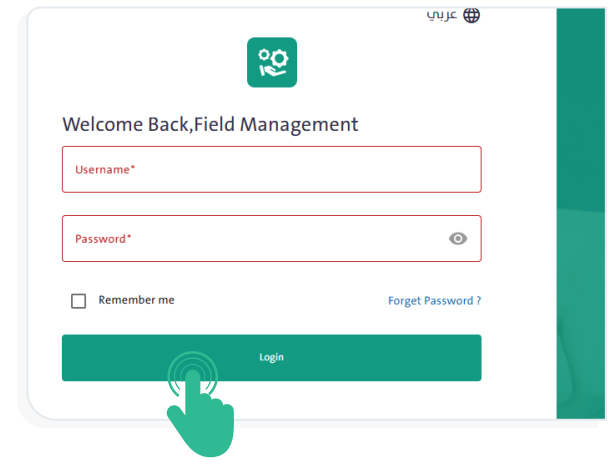
- Open the system link.
- Enter your username and password.
- Click the “Log In” button.
What should I do if I forget my password? #
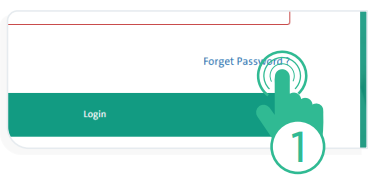
- Click “Forgot Password” on the login page.
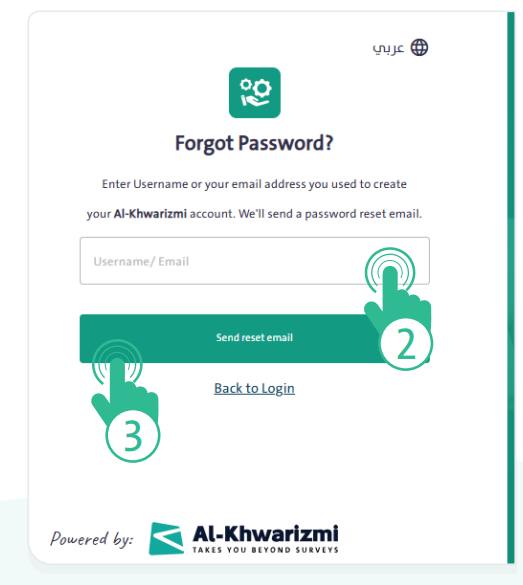
- Enter your email address and click “send reset email”.
- Follow the instructions sent to your email to reset your password.
How can I change the system language? #
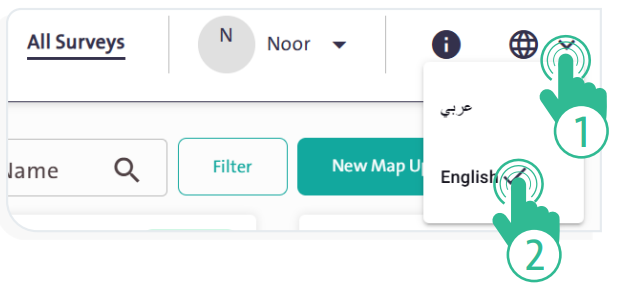
- Click the “Languages” icon
 at the top of the screen. A dropdown menu will appear with two options, as shown in the following figure:
- Arabic.
- English.
- Select the language that suits you to facilitate your work in the Call Center System.
- The system screens will switch to the language you selected.
How can I view the main platform information? #
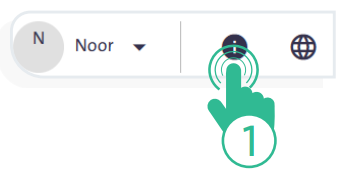
- Click the “Information” icon
 .
.
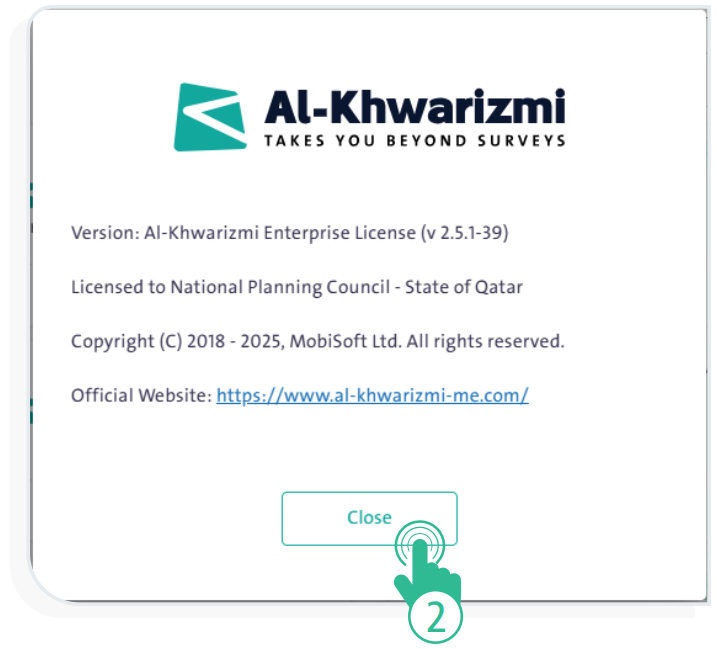
- Review the details of the version and copyright.
How can I assign tasks to users? #
- From the side control menu, select “Assign Tasks”
 .
. - Select the user to whom the task will be assigned.
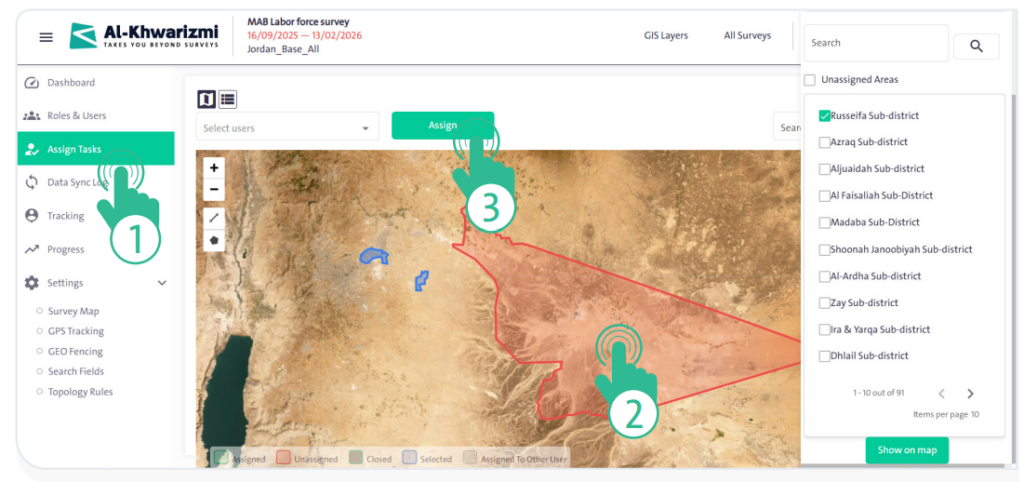
- Search for the geographic layer to be assigned.
- Select the geographic layer on the map.
- Click “Assign”
 .
.
How can I assign tasks using the list? #
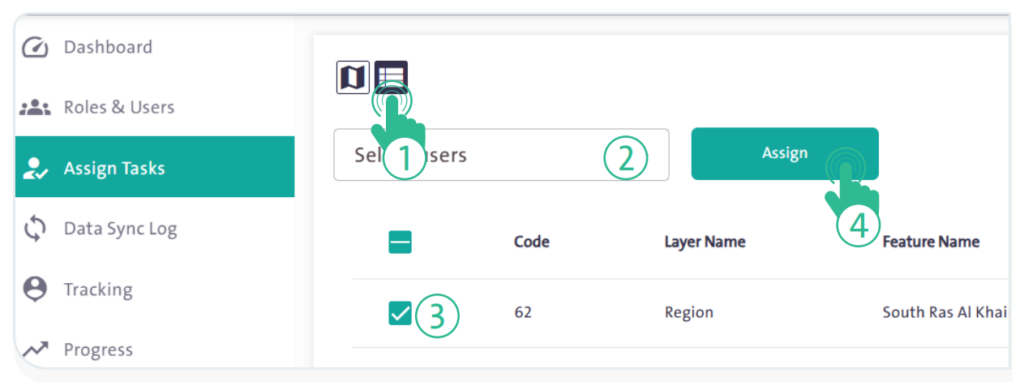
- From “Assign Tasks” , click the list icon
 .
. - Select the user and the geographic layer.
- Click “Assign”
 .
.
How can I assign specific units? #
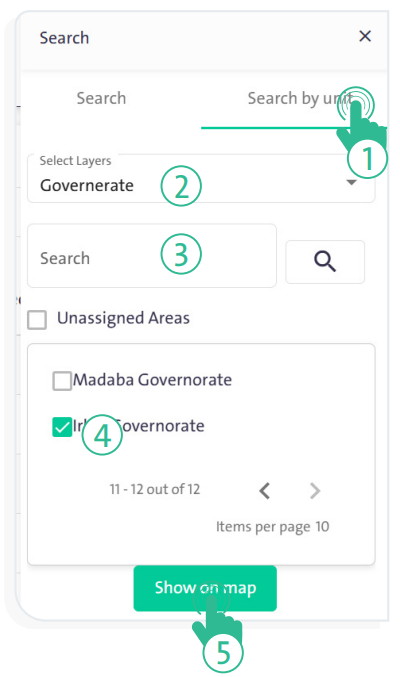
- From “Assign Tasks” , select the “Search by Unit” tab.
- Choose the layer and search for the unit name.
- Select the unit, then click “Show on Map”
 .
. - Select the user from the dropdown list and the unit on the map.
- Click “Assign” .
How can I use the map to track the team? #
- From the side control menu, select “Tracking”
 .
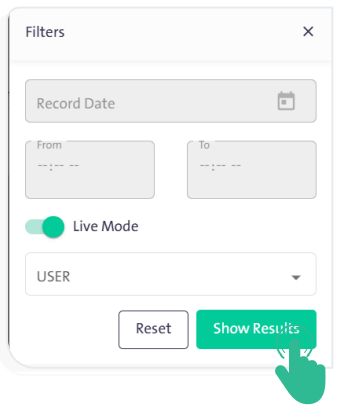
. - Click “Search” to define the tracking period and select the target user.
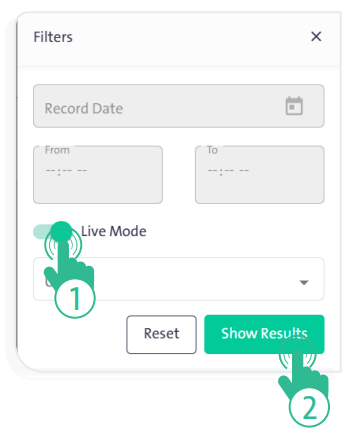
- Configure the above options, then click “Show Results”
 to display a path drawing of the researcher’s movement on the map according to the time and date you specified.
How can I use the map to track the team in real time? #
- From the side control menu, select “Tracking” .
- Enable the “Live Mode” option.
- Click “Show Results” to display a path drawing of the researcher’s movement on the map in real time.
How can I create a map update survey? #
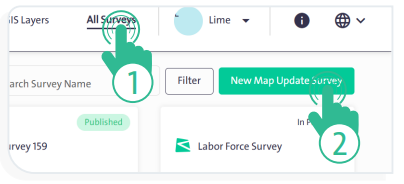
- Click the «Surveys» link at the top of the system screen.
- Click the «New Map Update Survey» icon
 .
. - Configure the required settings, then click «Save».
How do I filter Surveys in the system? #
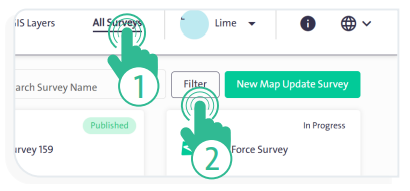
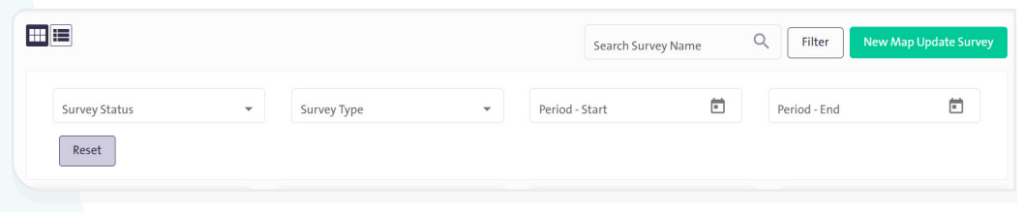
- On the All Surveys screen, click “Filter” .
- Select the status, type, and time period.
- Click “Reset” to clear the filter.
How can I manage table columns? #
- In any table (Data Transfer Log or Achievement), click “Columns”.
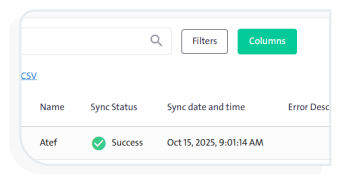
- Select the columns and arrange them using drag and drop.
- Click “Save”
 .
.
How can I measure a distance on the map? #
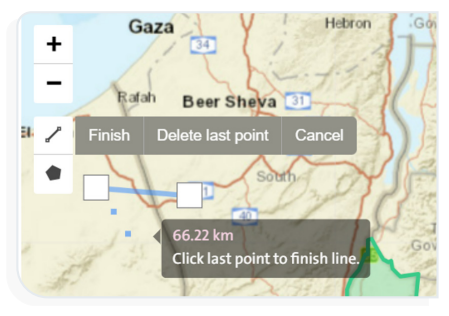
- On the map, click a “Distance” icon
 .
. - Select the start and end points.
- View the displayed value.
How can I change the layer colors? #
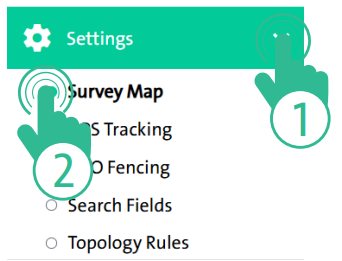
- From the side control panel, go to “Settings”
 and select “Survey Map”.
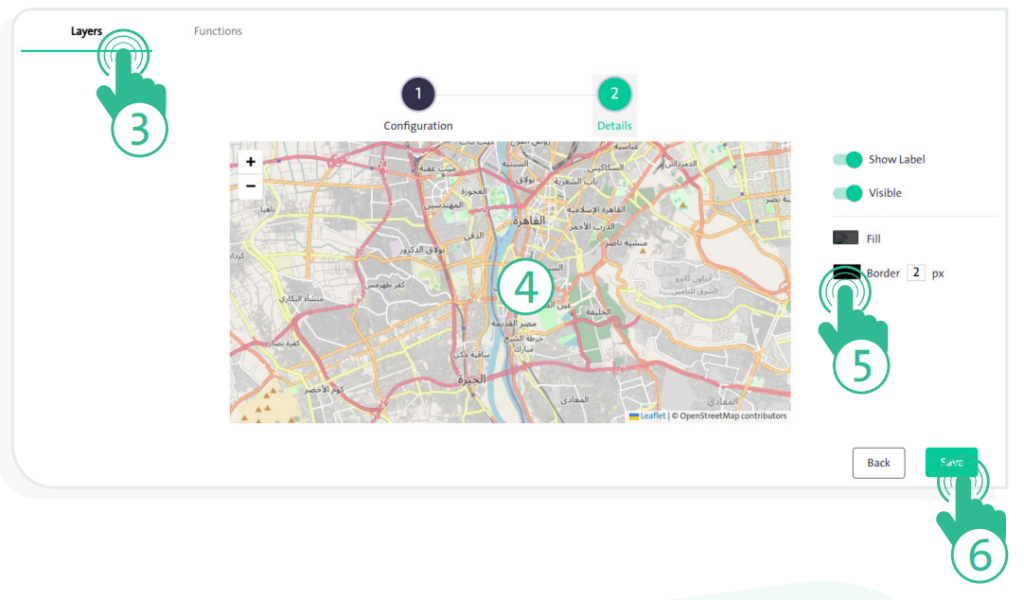
- Click the “Layers” tab.
- Select the layer, then modify the “Fill Color” or “Border Color”.
- Click “Save”.
How can I generate a temporary password for the researcher? #
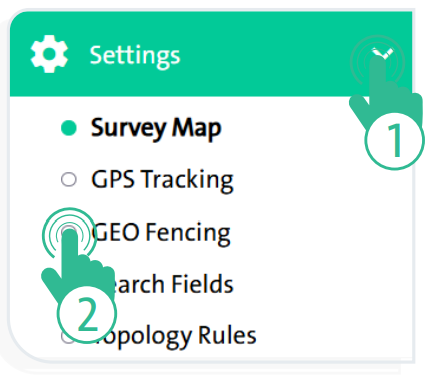
- From the side control panel, go to “Settings” and select “GEO Fencing”.
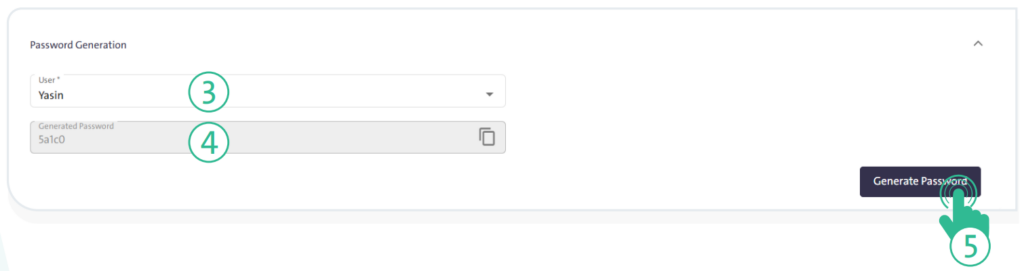
- Click the “ Password Generation” tab, then select the user.
- Click “Generate Password”.
How can I export the Progress or Tracking tables for use outside the system? #
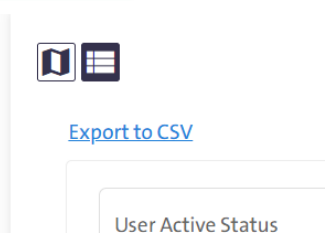
- Select the table you want to export.
- Click the “Export to CSV” link.
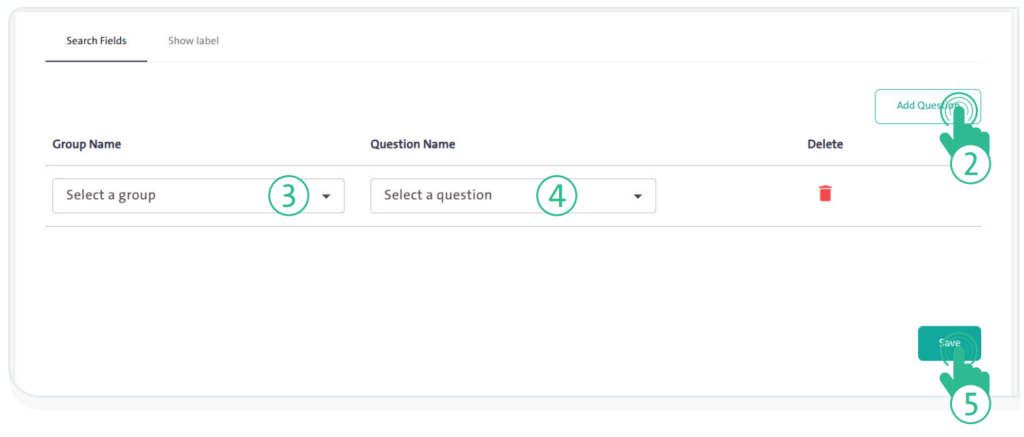
How can I add search fields? #
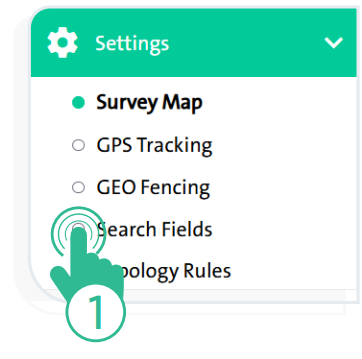
- From the side control panel, go to “Settings” and select “Search Fields”.
- Click the “Search Fields” tab.
- Click “Add Question”
 , then select the group and the question.
 - Click “Save”.
How can I resolve any other issues I encounter? #
- Refer to the current system user manual.
- Contact the technical support team.
