
Skip to content
  • Home
  • Documentation
  • Contact
  • About
Menu
  • Home
  • Documentation
  • Contact
  • About
العربية

Designer

34
  • Introduction to the Survey Designer
  • Start As Survey Designer
  • Frequently Asked Questions (FAQ)
  • Error Messages and Their Solutions
  • Designer Dashboard
    • Overview
    • Edit Profile Information
    • Log Out
    • Change Language
    • View Key Information of Al-Khwarizmi Platform
    • View Survey Summary
  • My Surveys Screen
    • Overview
    • Viewing Surveys
    • Creating a New Survey
    • Copy a Survey from Templates
    • Duplicate an Existing Survey
    • Edit an Existing Survey
    • Delete a Survey
    • Add a Survey to Templates
    • View Survey Versions
    • Survey Reports
    • Sort the Surveys Table
    • Search the Table Data
  • Control Panel
    • Overview
    • Add organization
    • Search for a User Role
    • Creating New Groups
    • Add Users to Groups
    • Search for Users
    • Add Users
    • Assign Surveys
    • Survey Timeline View
    • Enrich the Question Bank
    • Upload a Survey Sample
    • Enrich the Coding List

Call Center

27
  • About the Call Center
  • Getting Started with the Call Center
  • Frequently Asked Questions (FAQs)
  • Error Messages and Solutions
  • Call Center Dashboard
    • Overview
    • Edit Profile Information
    • Log Out
    • Change Language
    • Sending Notifications
    • View Key Information of Al-Khwarizmi Platform
    • Viewing Available Surveys
  • Form Screen
    • Overview
    • Displaying the Survey Main Screen
    • Adding a New Job Group
    • Add Users to Survey Roles
    • Preview Users and Their Job Group
    • Add a New Queue
    • Add a New Queue
    • Assign Queues
    • Distribute Workload in Queues
    • Pull a survey Unit
    • View Task Log
    • Filter the Task Table
    • Task Table Column Settings
    • Assign Units from Queue
    • Search for a Unit
    • Add a Call

Field Managment

29
  • Introduction to Field Management
  • Getting Started as a Field Management
  • Frequently Asked Questions (FAQ)
  • Error Messages and Solutions
  • Field Managment Dashboard
    • Overview
    • Edit Personal Account Information
    • Change Password
    • Logout
    • View Al-Khwarizmi Platform Information
    • Change Language
    • View Available Surveys
    • Create New Map Update Survey
    • Preview of Geographic Maps
    • Add a New Map
  • Form Screen
    • Overview
    • Display the survey Main Screen
    • Create a New Workgroup
    • Add Users to the Survey Job Group
    • Assign Tasks Using Maps
    • Assigning Tasks Using the List
    • Assigning Units to Users
    • Viewing the Data Transfer Log
    • Configuring Data Sync Log Table Columns
    • Tracking
    • Field Researchers’ Progress
    • Table Column Settings for the Progress Report
    • Configure Survey Settings
    • Configure Survey Settings
    • Add a New Version of Geographic Layers
View Categories
  • Home
  • Docs
  • Field Managment
  • Form Screen
  • Display the survey Main Screen

Display the survey Main Screen

Display the basic information of a specific survey. #
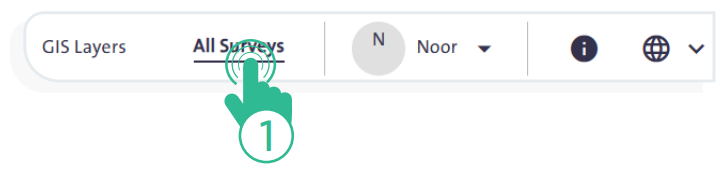
  • Click “All Surveys” link at the top of the system page to open a screen displaying the Surveys created by you or by your team members.
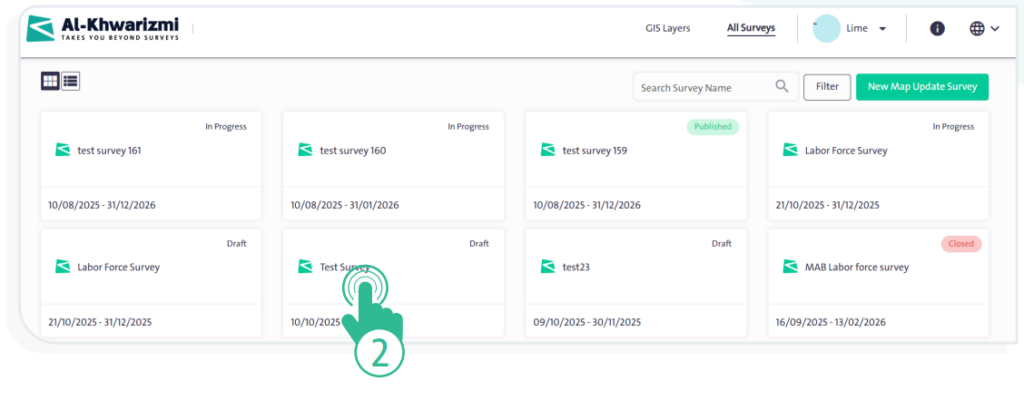
  • Click the survey you are working on to open its main screen, which includes:
    • The counts of roles, users, assigned areas, and unassigned areas.
    • The following tables and information:
      • “Field Workers Progress” which includes:
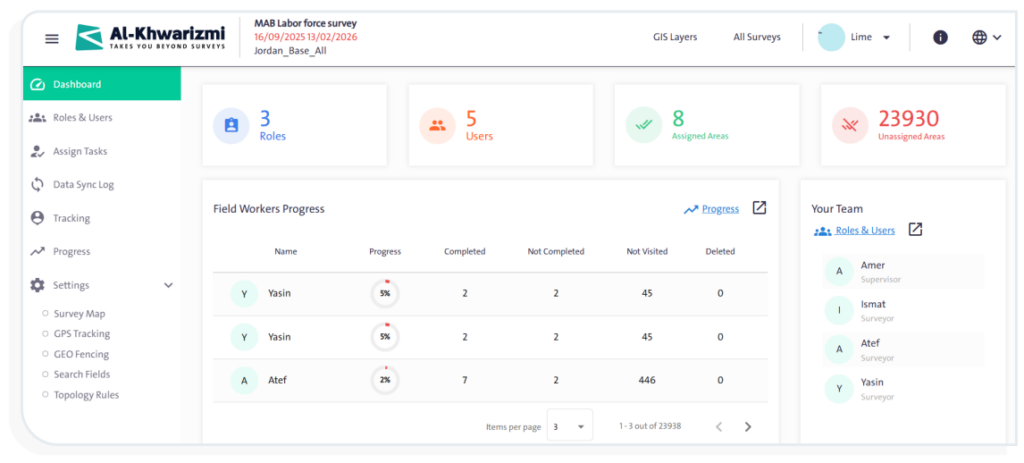
        • Names: Displays the names of field researchers participating in the form.
        • Progress: The completion percentage of each researcher in the fieldwork for this form.
        • Completed: The number of units successfully completed by the researcher.
        • Not Completed: The number of units started but not yet completed by the researcher.
        • Not Visited: The number of units not yet visited by the researcher.
        • Deleted: The number of units deleted for any reason, which are still considered in the completion percentage.
  • «Active Users»: Users currently active on the map in real time.
  • «Your Team»: Users working on filling out the same form.
  • « Geo Level Progress»: Displays the completion rates per geographic area by showing completed, incomplete, unvisited, and deleted units in each area.

What are your Feelings

  • Happy
  • Normal
  • Sad
Create a New WorkgroupOverview
Table of Contents
  • Display the basic information of a specific survey.

More Links

  • Abbreviations
  • Dictionary
  • Conventions
  • Al Khwarizmi Products
  • Al Khwarizmi Designer

Al Khwarizmi User Guide by Realsoft. All Rights Reserved.