Previewing the Forms Available to the User #
To preview the forms available to the user, follow the steps below:
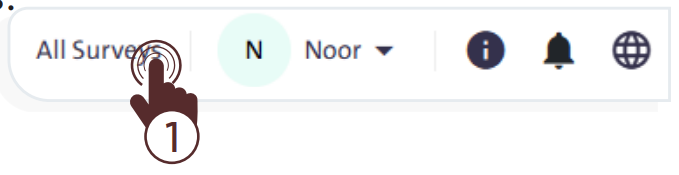
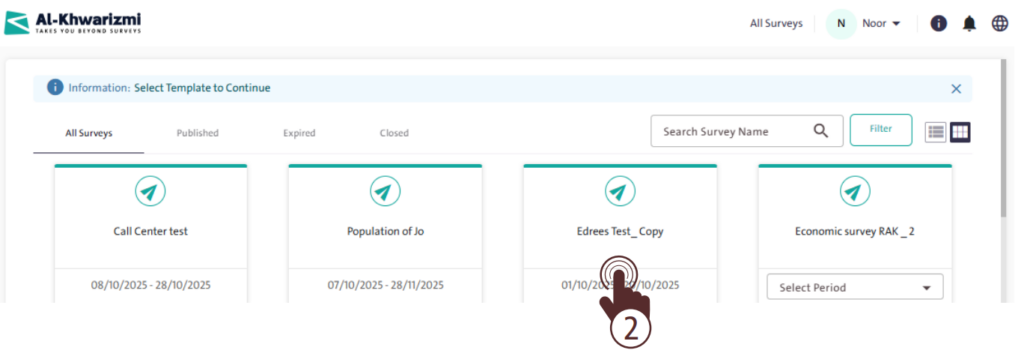
- Click the “All Surveys” link at the top of the screen to open a page displaying the forms created either by you or by your team members, where the Call Center has been selected as one of the data collection sources. These Surveys are limited to the following categories:
- Published
- Expired
- Closed
- Select the form you wish to work on to proceed to its main page.
INFO
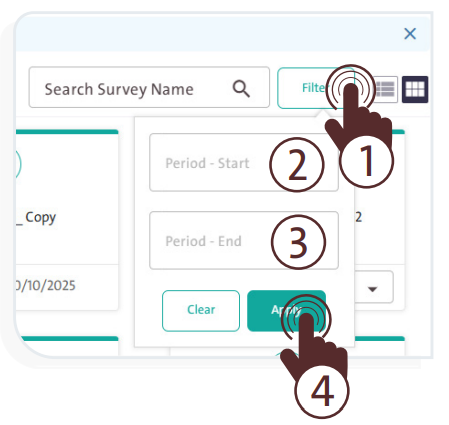
- You can filter Surveys by a specific time period by clicking “Filter”
 , then selecting the form’s start and end dates, and clicking “Apply”
- Search for a specific Survey by typing its name in the “Search Survey Name” box
 , then click the “Search” icon to locate it quickly.
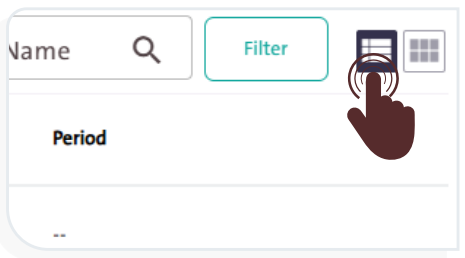
- Switch between the two display modes for Surveys on the main page:
– Card View: Click the “Cards” icon to display Surveys as cards.
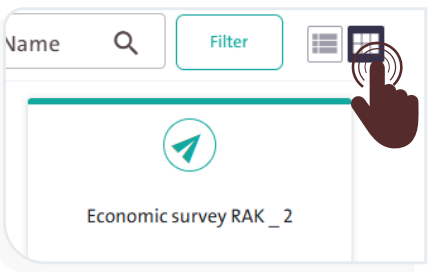
– List View: Click the “List” icon  to display Surveys in a list format.