Filter the survey calendar. #
The “Calendar” window displays all surveys as a timeline bar indicating the start and end dates. It is used to edit survey period names, as well as the start and end dates for each period.
To filter the displayed calendar, follow these steps:
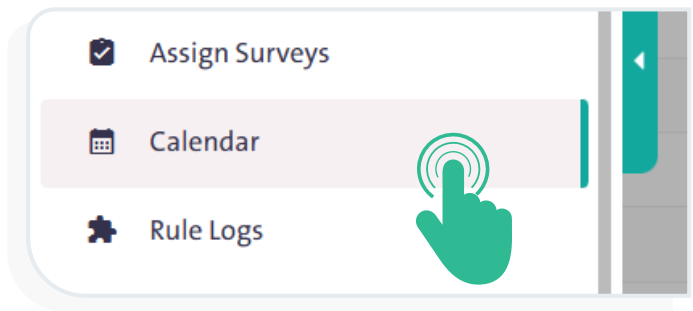
- From the side Control Panel, select “Calendar”.
- Filter the survey timeline view by clicking the “Filter” icon
 , then enter the required data from the following fields to further customize the filtering process:
- Survey name
- Survey status, including Published, Completed, and Closed
- Survey types, such as Population, Labor, Education, Health, Economy, Energy, and Agriculture
- Survey start date
- Survey end date
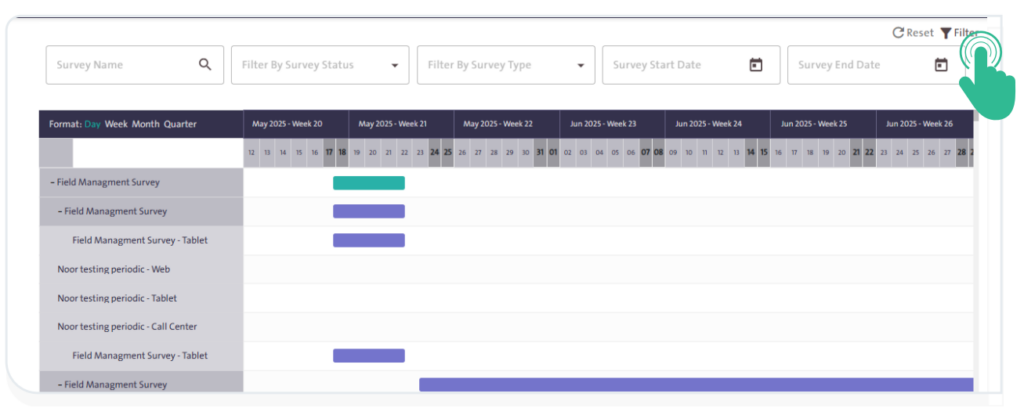
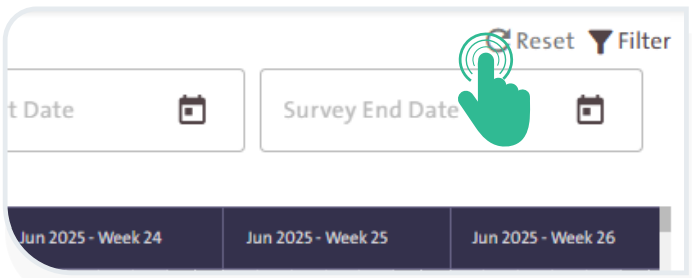
- Reset the calendar to its default view by clicking “Reset”
 This will clear the previously applied filters.
INFO
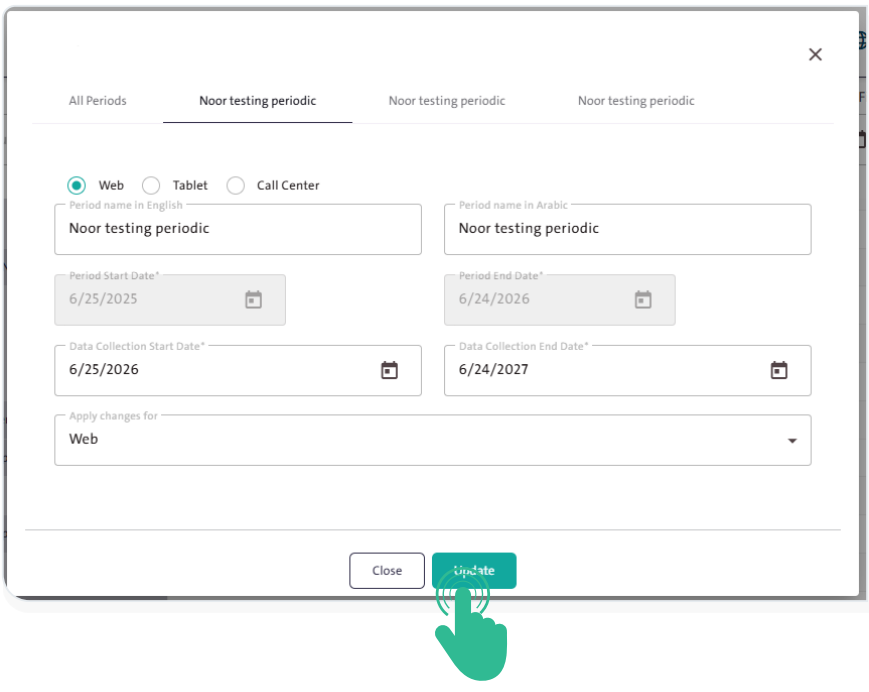
- Click the “Survey Name” in the calendar to open a pop-up window where you can:
- Specify the period name in both Arabic and English.
- Set the data collection start date and end date.
- Choose the system (Web, Tablet, or Call Center) where the changes will apply.
- After completing the required fields, press “Update”
 to apply the modifications.